
Plan alerts: know before you reach your limit
Three alerts tell you before and when your plan limit is reached: a forecast in days, a usage warning and a limit alert, by email, in the app and in chat.
Your plan includes a number of actions in a rolling 30 days. Once they are used up, new actions are blocked: the emails and HTTP requests of your workflows are not sent, and they are not sent later either. Three alerts tell you before and when that happens, so you can act in time.
The three alerts
| Alert | When it is sent | Default setting |
|---|---|---|
| Plan limit forecast | At the rate your store is using actions right now, the limit is reached within the number of days you chose. The alert says how many days are left, how many actions a day your store is using and the date the limit would be reached | Enabled, 7 days ahead |
| Quota warning | Your usage crosses the share of the plan you chose | Enabled, at 80% |
| Quota exceeded | Your usage reaches 100% and actions start getting blocked | Enabled |
The forecast comes first. It is the only one of the three that looks ahead: the other two tell you where you are, the forecast tells you where you are heading.
Each alert is sent at most once per calendar month. Changing your plan re-arms all three against the new limit.
Where an alert arrives
Every alert reaches you in three places:
- By email, to the notification recipients: the shop owner email by default, plus the recipients you added and who confirmed their address.
- As a banner on the dashboard of the app. The banner shows how many actions you used and what your plan includes. For the forecast it also shows about how many actions a day your store is using.
- As a message in the in-app chat. The same alert appears as a message from us in the chat inside the app, with a link to upgrade.
The banner has one of three headings:
| Heading of the banner | When it is shown |
|---|---|
| Your plan limit is about N days away | The forecast reaches the limit within your advance warning |
| Most of your plan is used | 80% of your plan or more is used |
| Plan limit reached | The limit is reached |
The banner has two buttons: one named Upgrade your plan and one named Open your history.
The banner is not a message that comes and goes. It shows where your plan stands every time you open the app, for as long as that is the case. Only one banner is shown at a time: when an email sender needs to be reconnected, that banner comes first.
How the forecast works
Your plan counts a rolling 30 days, not a calendar month. Every day, the actions of the day that is now more than 30 days old stop counting. A store that runs about the same number of actions every day therefore never gets closer to its limit, however long that goes on.
That is why the forecast only warns when your usage is growing:
- It takes your recent daily rate from the last 3 days and the last 7 days and uses the higher of the two. A sudden rise shows at once, and one quiet day does not hide a trend.
- It then walks forward day by day: it adds that daily rate and takes out the day that leaves the 30-day window. If that reaches your limit within your advance warning, the alert goes out.
- When the recent rate is several times your usual volume, the alert says so. A campaign, an import or a workflow that runs more often than planned may be behind it, and it may pass by itself.
The forecast is checked at most every 15 minutes per store, while your workflows are running actions.
Once your usage has crossed the threshold of the quota warning, the forecast email is not sent any more: from there on the quota warning speaks. The banner on the dashboard keeps showing the days that are left.
Settings
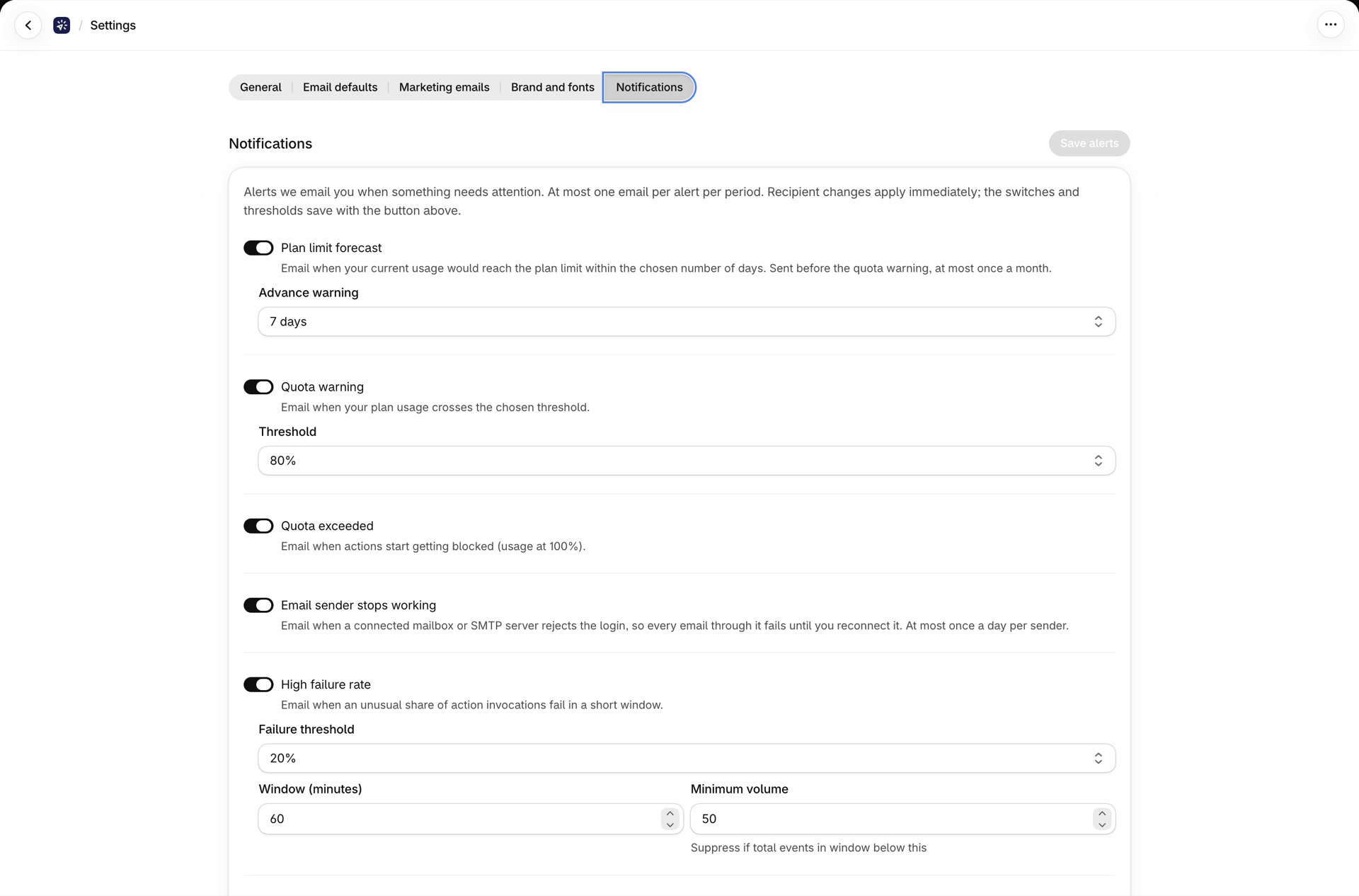
Open the Settings page of the app and pick the tab Notifications. The bell button on the dashboard opens the same settings.
| Setting | What it does | Default setting |
|---|---|---|
| Plan limit forecast | Switches the forecast alert on or off | Enabled |
| Advance warning | How many days before the limit you want to hear about it: 3, 5, 7 or 14 days | 7 days |
| Quota warning | Switches the usage warning on or off | Enabled |
| Threshold | The share of your plan at which the quota warning is sent | 80% |
| Quota exceeded | Switches the alert at 100% on or off | Enabled |
In the section Recipients you choose who gets the emails. See Notifications and alerts for the recipients and for the other alerts of the app.
A switch that is off stops the email and the chat message of that alert. The banner on the dashboard has no switch: it always shows the current state. The setting Advance warning also decides how early the forecast banner appears.
What to do when an alert arrives
- Open the History page of the app and look at which workflows run the actions. One workflow is usually responsible for most of the volume.
- Check that workflow in Shopify Flow: does it run more often than you planned, or for more customers than you meant?
- If one email goes to several people, send it in one step. Several recipients in one Flow step count as one action.
- If you need the volume, upgrade your plan before the limit is reached.
My usage is high. Why did I get no forecast?
Because it is not growing, or because the quota warning already spoke. With steady usage, as many actions leave the 30-day window every day as come in, so the limit does not come closer. And once your usage is above the threshold of the quota warning, that alert takes over from the forecast.
The forecast said 5 days, and the limit was not reached. Why?
The forecast is an estimate from your recent daily rate. If a campaign or an import caused the rise and then ended, the rate drops again and the limit moves away. The alert tells you when usage is several times your usual volume, which is the sign of such a spike.
Can I get the forecast again in the same month?
Each alert is sent once per calendar month for a given plan limit. If you change your plan, the alerts are armed again for the new limit. The banner on the dashboard is not limited this way: it shows the forecast for as long as it applies.
Who receives the alerts?
The shop owner email, unless you switched it off, and every additional recipient who confirmed the address. Every alert email carries an unsubscribe link for that recipient.
Related
- Plans and usage - the plans, what counts as an action and what happens at the limit.
- Notifications and alerts - recipients, the sender alert and the failure-rate alert.
- History and troubleshooting - see which actions used your plan.