

Passing data from Shopify Flow
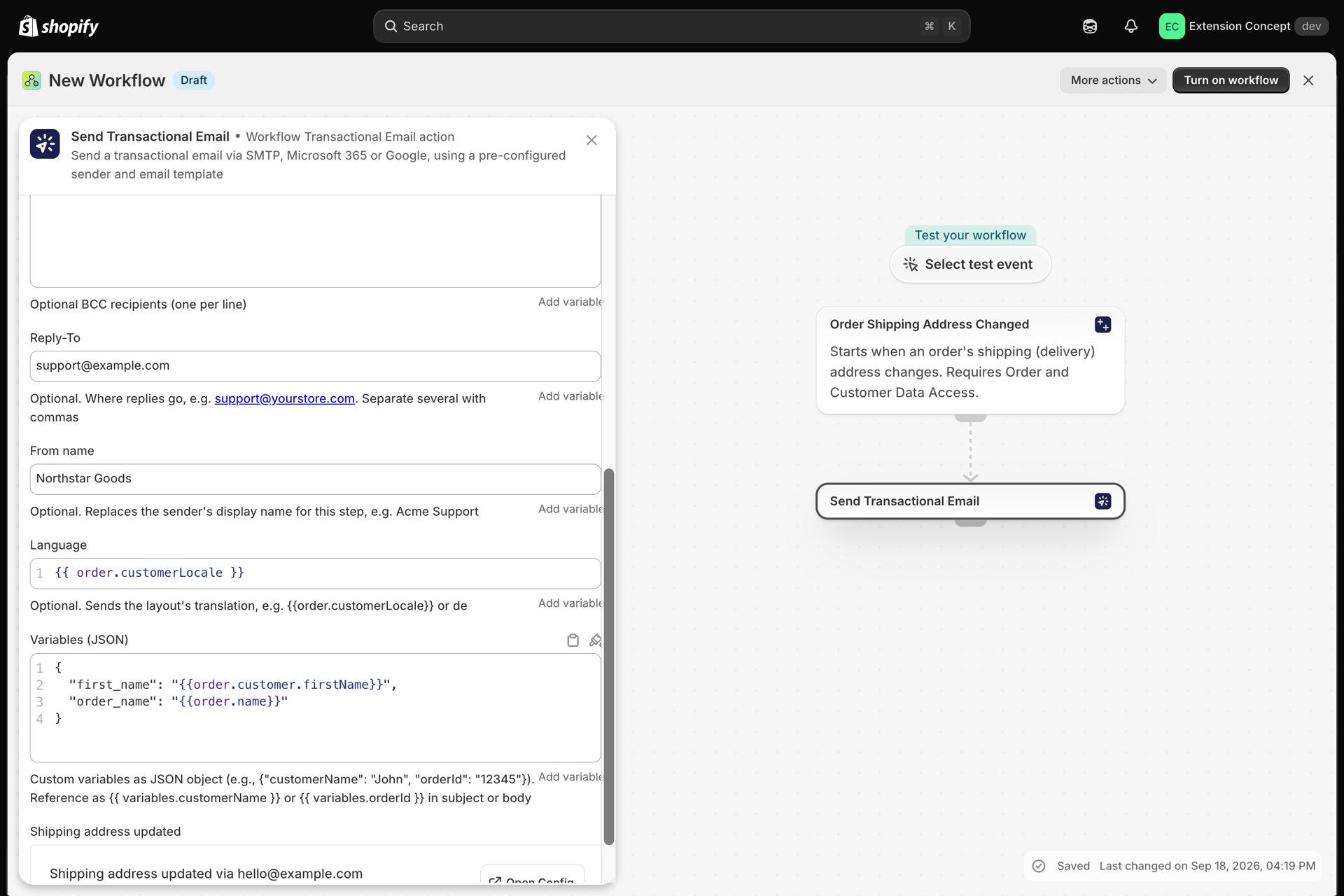
Your email layout is a shape with holes in it. Variables (JSON) is how Shopify Flow fills those holes.
This is the single most common thing to get wrong, so it is worth five minutes.
The two halves
| Where | What you write | Example |
|---|---|---|
| In your email layout | The placeholder | Hi {{ variables.firstName }} |
| In the Flow action | The JSON that supplies it | {"firstName": "{{ order.customer.firstName }}"} |
The key on the left of the JSON must match the name after variables. in your layout, exactly - same spelling, same capitalisation. firstName and firstname are two different variables.
Let the app write the JSON for you
You do not have to write this by hand, and you probably should not.
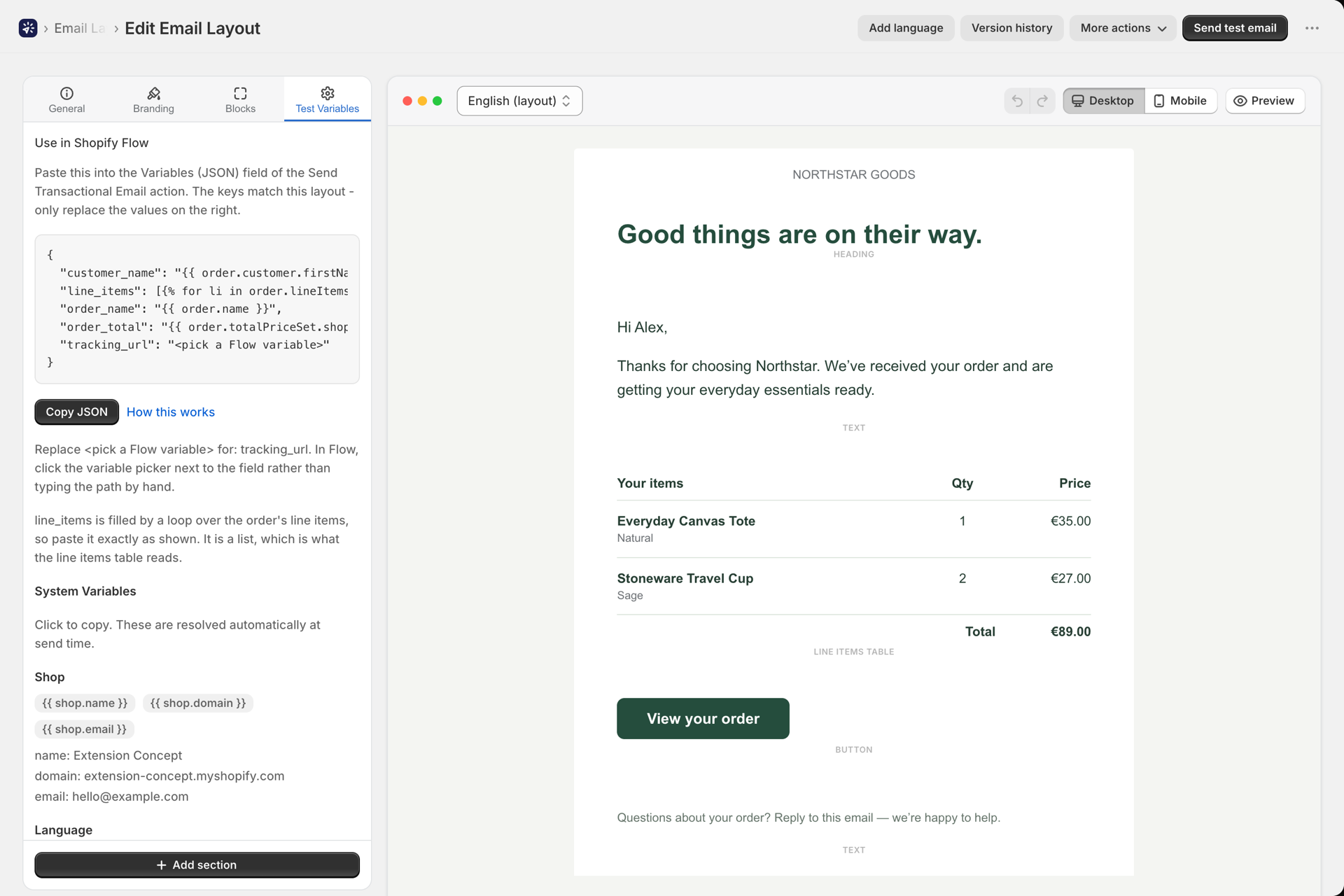
Open your layout. In the sidebar (or the Test Variables tab in the visual builder) there is a Use in Shopify Flow card containing the exact JSON for that layout, with every key already correct. Press Copy JSON, then paste it into the Variables (JSON) field of your Send Transactional Email action.
The app fills in the Flow property for fields it recognises - customer name, order name, order total, status page URL and similar. Anything it cannot infer appears as <pick a Flow variable> for you to replace.
What the JSON must look like
{
  "firstName": "{{ order.customer.firstName }}",
  "orderName": "{{ order.name }}",
  "statusPageUrl": "{{ order.statusPageUrl }}"
}
Rules worth knowing:
- Wrap every Flow value in double quotes.
"orderName": {{ order.name }}is invalid JSON;"orderName": "{{ order.name }}"is correct. - Commas between entries, none after the last one.
- Key names are yours to choose. They only need to match your layout. If your layout says
{{ variables.kunde }}, the key iskunde. - Values arrive as text. Numbers and dates come through as whatever Flow rendered them to.
The most common mistake: line items
An order has many line items, so there is no single variant.title to read. This returns nothing:
{{ order.lineItems.variant.title }}You have two good options.
Option 1 - loop inside the layout. Send the list, then iterate. In the Flow action:
{
  "items": "{{ order.lineItems | json }}"
}
In your layout, use a Loop block:
{% for item in variables.items %}
  <tr>
    <td>{{ item.title }}</td>
    <td>{{ item.quantity }}</td>
  </tr>
{% endfor %}
Option 2 - flatten it in Flow. If you only need one line of text, build it in Flow with a for loop and send the finished string:
{
  "itemList": "{% for li in order.lineItems %}{{ li.title }} x{{ li.quantity }}{% unless forloop.last %}, {% endunless %}{% endfor %}"
}
If the app spots a variable that looks like line-item data - anything named variant, product, item, sku or quantity - it warns you about this on the Use in Shopify Flow card.
Test values are not live values
This trips up nearly everyone.
- Test Variables in the layout editor drive the preview and Send test email only.
- A live Flow run ignores them completely and uses whatever the Flow action sends.
So a test email that looks perfect proves your design works. It proves nothing about your Flow configuration. Always confirm with a real workflow run.
When a variable comes out empty
Since 1.10.0 the app tells you instead of leaving you guessing.
If a live send renders a variable to nothing, the entry in History carries an Empty variables badge, and opening it shows exactly which ones, split into two cases:
| Case | Meaning | Fix |
|---|---|---|
| Sent by Shopify Flow but empty | The key was in your JSON, but Flow produced no value | The Flow property path is wrong, or genuinely empty for this order (a guest checkout has no customer.firstName) |
| Not sent by Shopify Flow at all | The key is missing from your JSON entirely | Add it - the Copy JSON button gives you the full set |
Guarding against empty values
For anything optional, give it a fallback in the layout so a blank never reaches a customer:
Hi {{ variables.firstName | default: "there" }}With a default: filter in place, the app treats an empty value as intentional and will not warn about it.
Checklist
- Copy the JSON from the Use in Shopify Flow card on your layout.
- Paste it into the Flow action's Variables (JSON) field.
- Replace any
<pick a Flow variable>using Flow's variable picker. - Loop over line items rather than reading them directly.
- Add
| default:to anything optional. - Run the workflow for real, then check History for an Empty variables badge.
Related
- Variables and Liquid - the full templating reference.
- Build an email layout - designing the layout itself.
- History and troubleshooting - reading a failed or blank send.