

Send a shipping confirmation email when an order is fulfilled
When an order is fulfilled, send the customer a branded shipping confirmation from your own mailbox, in the customer's language, with the tracking number, the tracking link and the order status page.
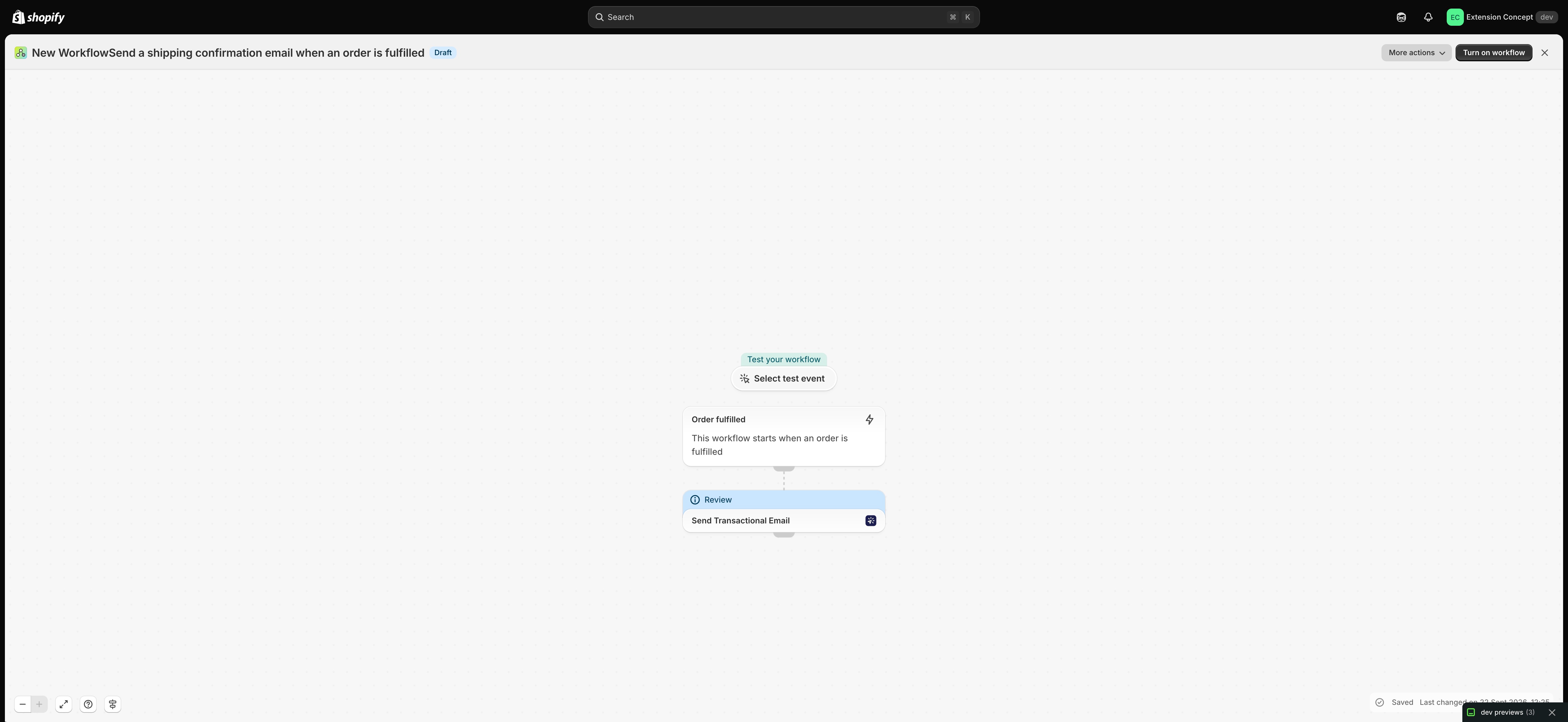
One trigger and one Send Transactional Email step. The recipient, the language and the variables are already filled in from Flow's data; you only choose the sender and the layout.
What it needs
- The app installed, with an email sender connected (Email senders overview) and an email layout for this email (Build an email layout).
- After the import, open the Send Transactional Email step and choose that sender and that layout. The file cannot carry them: they belong to your store.
- Nothing else: Order fulfilled is a built-in Shopify trigger.
Get the workflow
- Download the
.flowfile attached at the bottom of this page. - In your Shopify admin open Flow, click Import and choose the file.
- Open the Send Transactional Email step, choose the sender and the layout, and save.
- Click Turn on workflow.
The file is an export from Shopify Flow itself. Do not edit it by hand; change the workflow in Flow after importing it.
How it works
- Order fulfilled starts the workflow when a fulfillment is created for an order.
- Send Transactional Email sends the layout you choose to
{{ order.email }}, in the customer's language ({{ order.customerLocale }}), with these variables:customer_name,order_name,tracking_numbers,tracking_urlandstatus_page_url.
Build the layout
Use {{ variables.tracking_numbers }} and {{ variables.tracking_url }} in the layout, for example as the link of a button. Every variable the step sends is read in the layout as {{ variables.name }}; the Use in Shopify Flow card on the layout page lists the ones your layout uses. See Passing data from Shopify Flow.
Make it yours
- Add a condition on
order.fulfillmentsso the email only goes out for the first fulfillment of an order. - Add Reply-To in the step so questions about the delivery reach your support inbox.
Next steps
- Workflow templates - all templates.
- Send emails in your customer's language - a translation per customer language, picked by the Language field.
- History and troubleshooting - check that the email went out.