

Send an address confirmation email when an order shipping address changes
When the shipping address of an order changes, send the customer a confirmation with the new address from your own mailbox, in the customer's language, so a wrong edit is caught before the parcel ships.
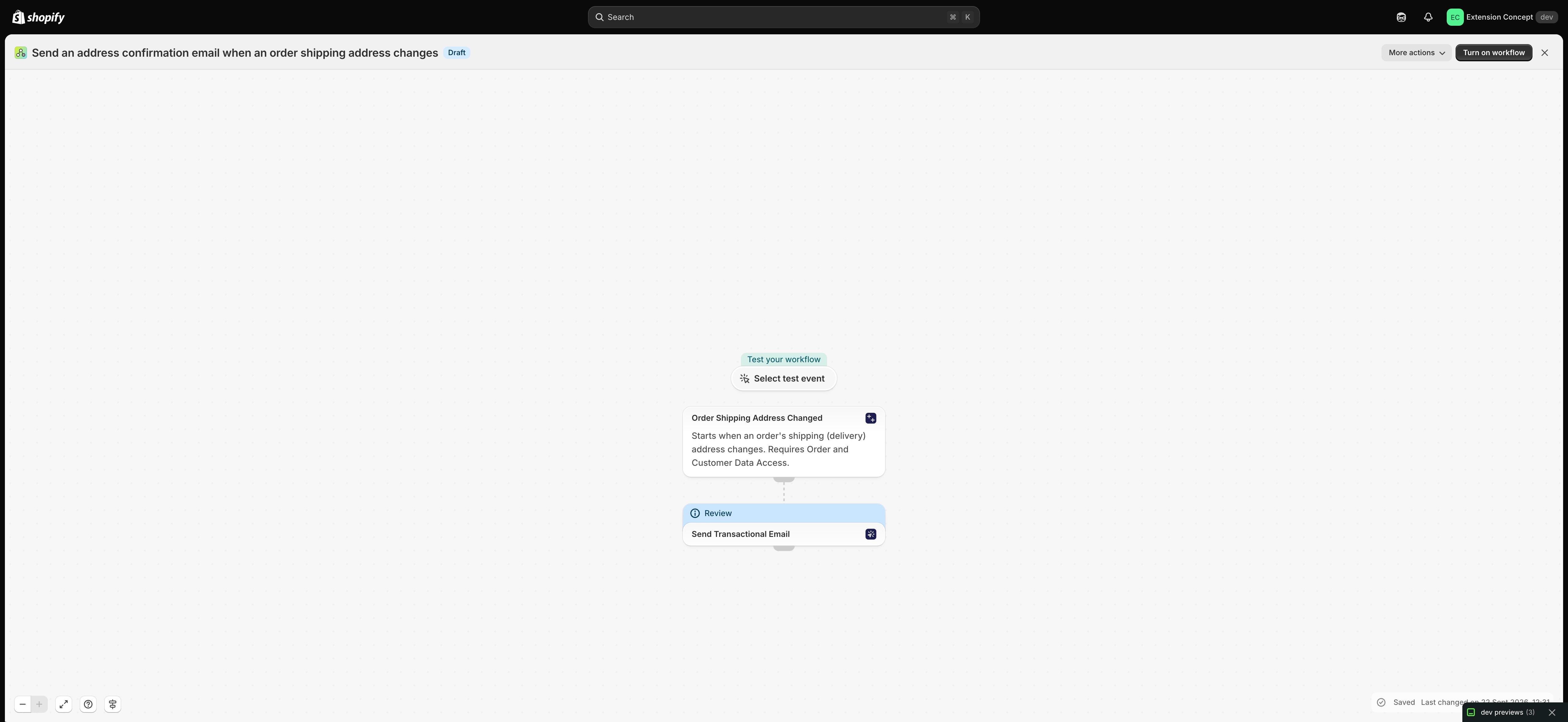
One trigger and one Send Transactional Email step. The recipient, the language and the variables are already filled in from Flow's data; you only choose the sender and the layout.
What it needs
- The app installed, with an email sender connected (Email senders overview) and an email layout for this email (Build an email layout).
- After the import, open the Send Transactional Email step and choose that sender and that layout. The file cannot carry them: they belong to your store.
- The trigger comes from the Workflow Trigger Extensions app: install it and grant Order and Customer Data Access on its Permissions page. Turning the workflow on switches the trigger on in that app.
Get the workflow
- Download the
.flowfile attached at the bottom of this page. - In your Shopify admin open Flow, click Import and choose the file.
- Open the Send Transactional Email step, choose the sender and the layout, and save.
- Click Turn on workflow.
The file is an export from Shopify Flow itself. Do not edit it by hand; change the workflow in Flow after importing it.
How it works
- Order Shipping Address Changed (Workflow Trigger Extensions) starts the workflow when the shipping address of an order is edited.
- Send Transactional Email sends the layout you choose to
{{ order.email }}, in the customer's language ({{ order.customerLocale }}), with the new address as variables:address_name,address_line1,address_line2,address_zip,address_cityandaddress_country, pluscustomer_name,order_nameandstatus_page_url.
Build the layout
Put the address variables in a text block, one per line, and link {{ variables.status_page_url }} so the customer can check the order. Every variable the step sends is read in the layout as {{ variables.name }}; the Use in Shopify Flow card on the layout page lists the ones your layout uses. See Passing data from Shopify Flow.
Make it yours
- Add a condition on
order.displayFulfillmentStatusEqual toUNFULFILLEDso the email only goes out while the address still matters.
Next steps
- Workflow templates - all templates.
- Send emails in your customer's language - a translation per customer language, picked by the Language field.
- History and troubleshooting - check that the email went out.