
Send emails in your customer's language
Add translations to one email layout and let Shopify Flow send each customer the matching language automatically, with fallbacks for the rest.
A customer in Munich should not get an order confirmation in English, and you should not need three layouts and three workflows to avoid it. One email layout can carry every language you sell in. Your Shopify Flow step says which language a customer speaks, and the app sends the matching version. Everybody else gets the layout in its main language.
This guide goes from a single-language layout to emails in your customer's language, and covers what happens in every edge case: unknown languages, regional variants, later edits, testing and troubleshooting.
How it works
- A layout has one main language. That is the layout itself, the version you have today.
- You add translations to it: German, French, as many as 30 per layout. Each has its own subject, preview text and content.
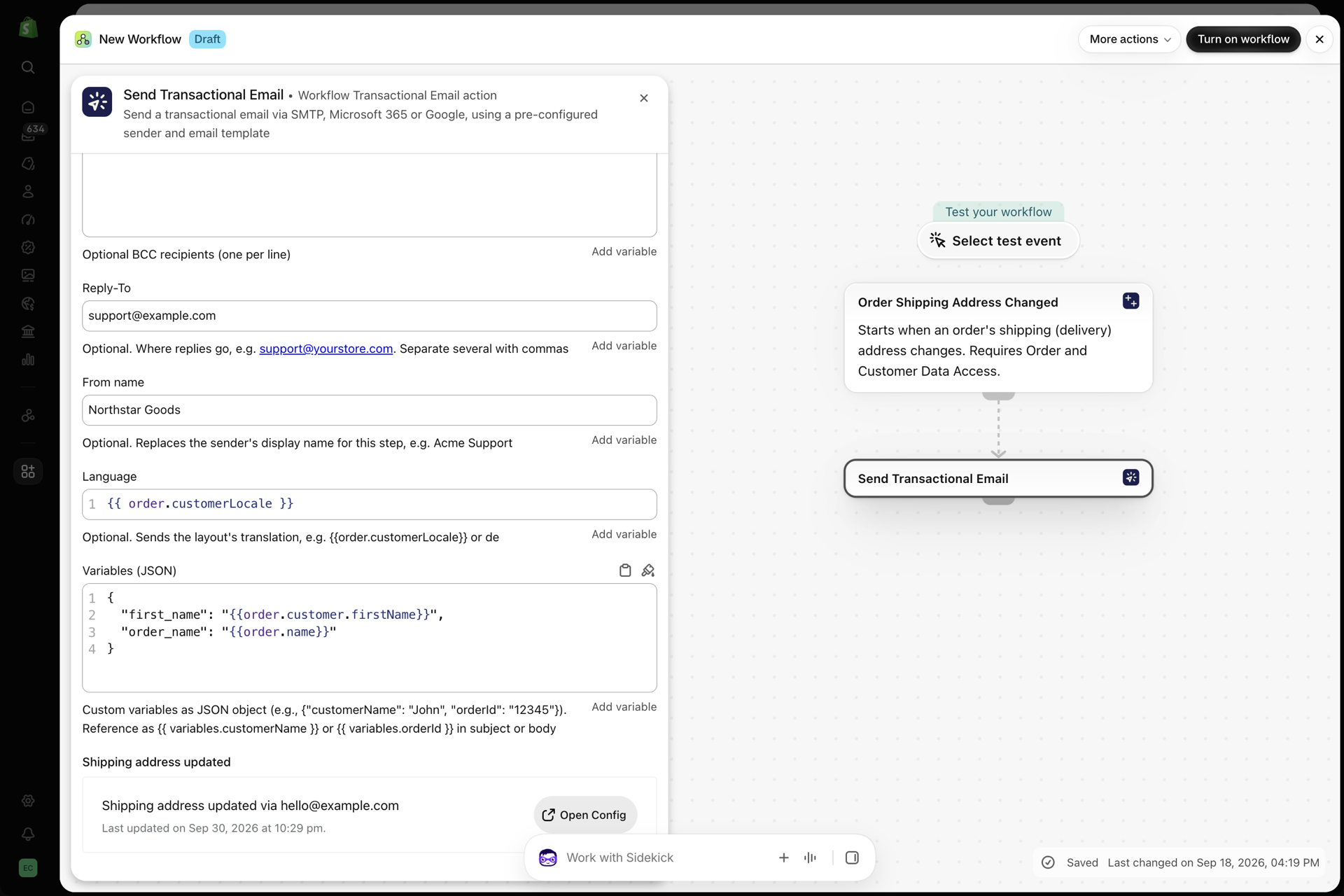
- In Shopify Flow, the Send Transactional Email action has a Language field. Set it to the customer's language, for example
{{order.customerLocale}}. - When the email is sent, the app picks the matching translation. If there is none, the main language is sent. An email is never blocked because of its language.
One layout, one workflow, every language.
Step 1: Add a language
- Open the layout under Email Layouts.
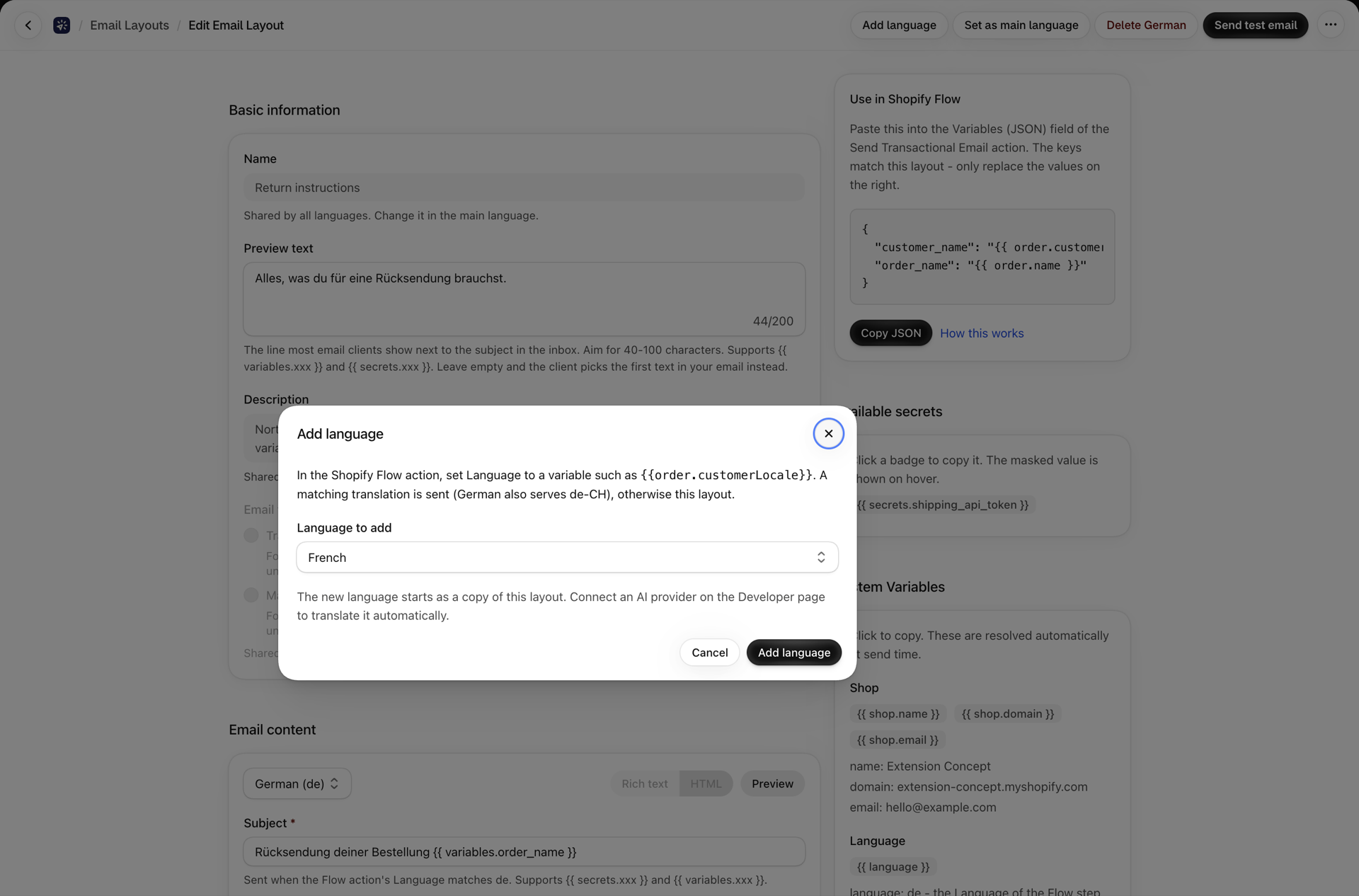
- Click Add language at the top of the page.
- Choose the language under Language to add and click Add language.
The new language starts as a copy of your saved layout and opens in the editor right away. Translate the subject, the preview text and the content, then Save.
With an AI provider connected you can choose Translate with AI instead of a copy. Every text is translated; Liquid tags such as {{ variables.order_name }}, links and the design stay exactly as they are. Nothing is sent before you have reviewed and saved it. See Create, edit and translate layouts with AI.
Layouts you made before languages existed
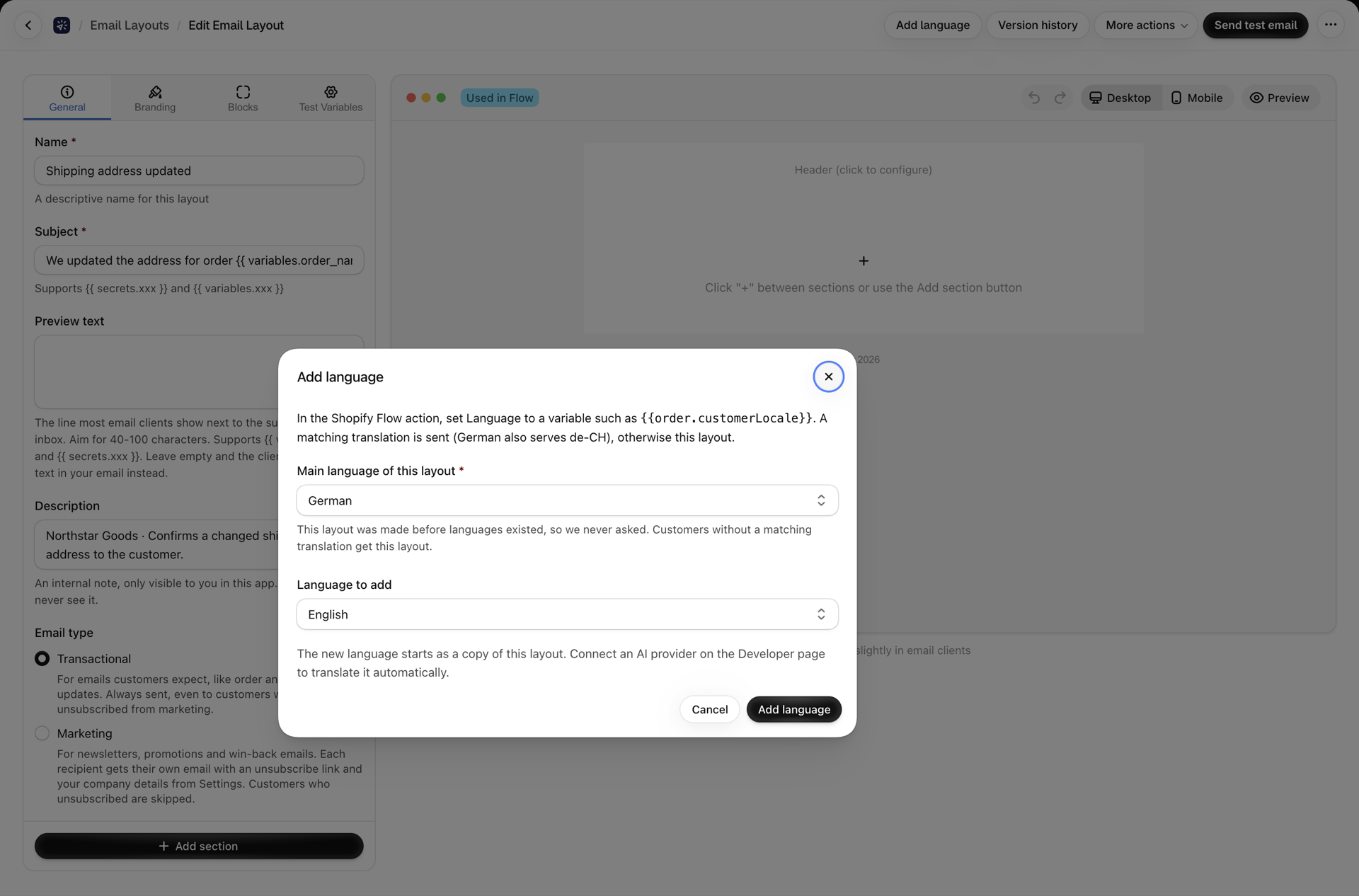
A layout created before this feature has no main language yet. We never asked what it is written in, and we do not guess. The first time you add a language to such a layout, the dialog starts with one extra question: Main language of this layout.
- Nothing is preselected. Choose the language the layout is written in today: German for a German layout.
- Language to add and the Add language button stay disabled until you have chosen.
- You are asked once per layout. Layouts you create from now on choose their language on the create page.
Getting this right matters: customers whose language has no translation receive the main language, and translations are matched against it.
Step 2: Translate in the same editor
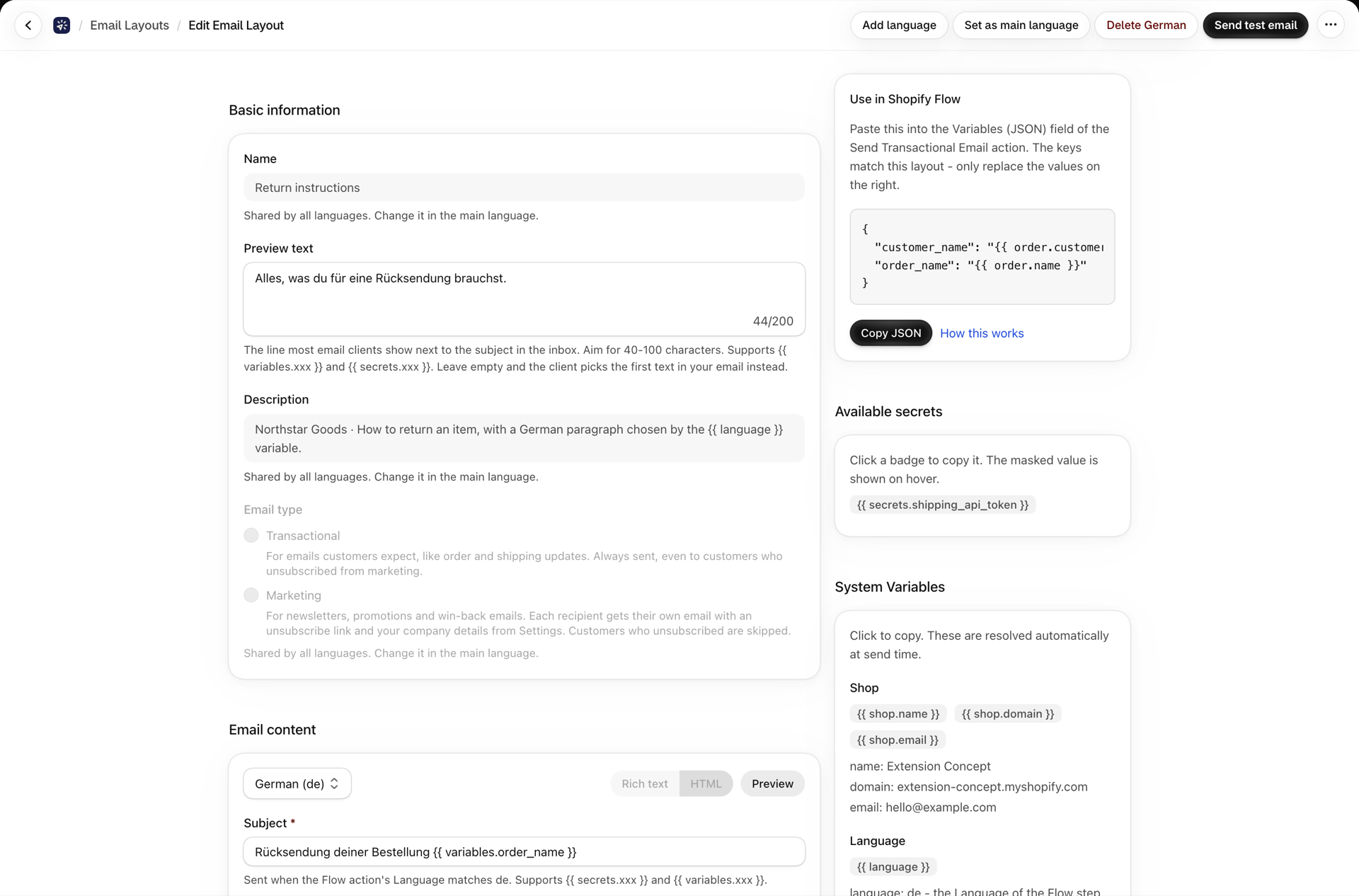
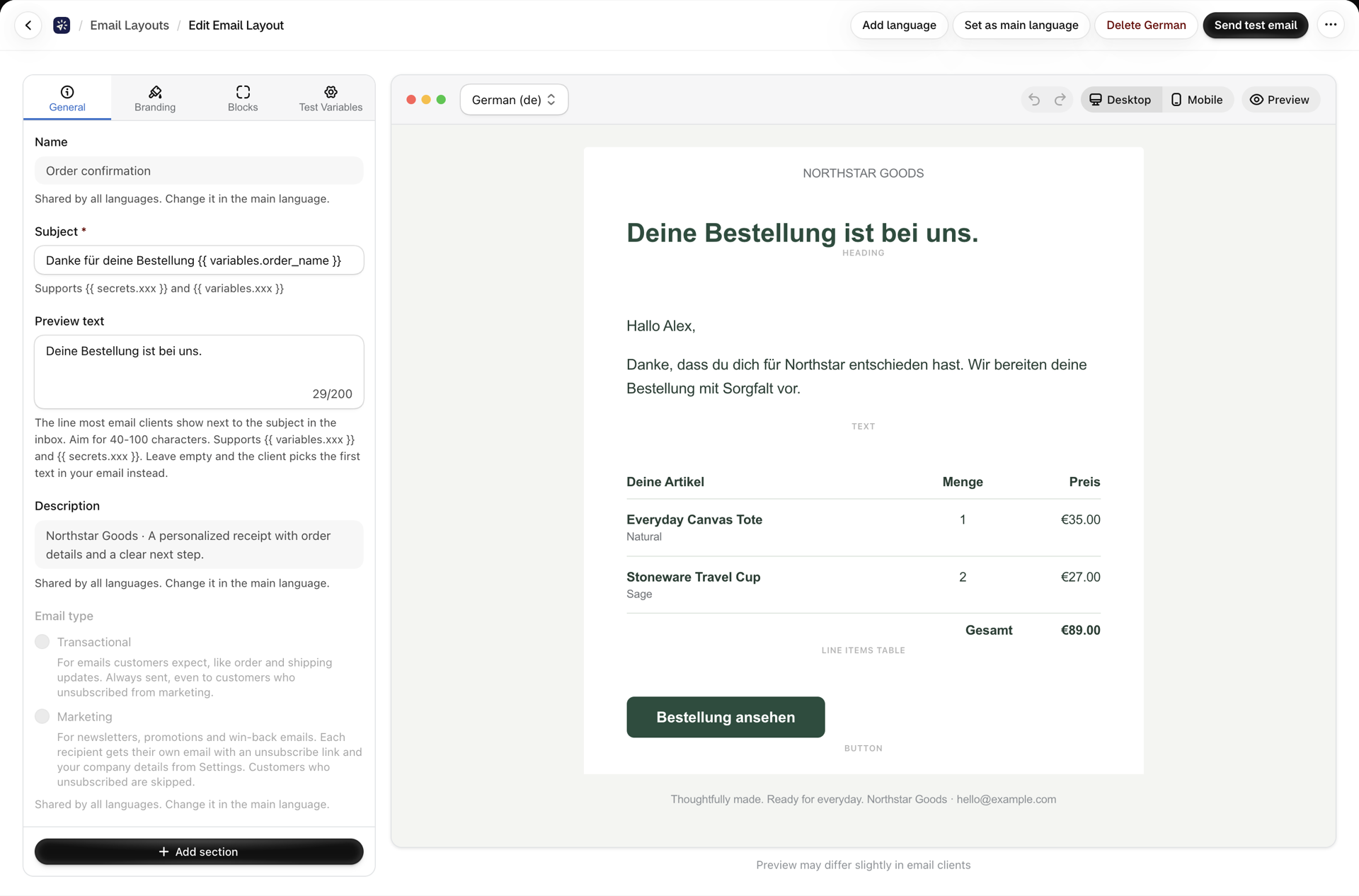
A translation opens in the editor you already know: the visual builder for builder layouts, rich text or HTML for the others. Switching language does not change the screen, only the content.
- Switch with the Language picker: in the bar above the canvas in the visual builder, at the top of the Email content card in a rich text / HTML layout.
- The entry marked (layout) is the main language.
Attachments per language
A German invoice PDF, a French terms sheet: attachments can differ by language.
Visual layouts. Attachments are Attachment blocks in the design, and every language has its own design. A new language starts as a copy, so it carries the same attachment blocks; swap the file in the German version and only German emails get it.
Rich text / HTML layouts. The Attachments card on a translation page starts with a choice, Attachments in this language:
| Choice | What is sent |
|---|---|
| Same as the main language | The attachments of the main language. Change them there. This is the default for every language. |
| Different attachments for this language | Only emails sent in this language carry these files. |
Choosing Different attachments for this language starts from the main language's list, so replacing one PDF is one change. Remove every file and emails in that language go out without attachments while the main language keeps its own. Switch back to Same as the main language and the language follows the main language again.
Set as main language keeps every language sending exactly what it sent before, so promoting a translation never changes anybody's attachments.
Size limits and the Attach / Link modes are the same as for the main language, see Attachments and images.
Marketing footer per language
A marketing layout ends with the unsubscribe sentence and your company details. A translation can carry its own wording: the Marketing footer card on the translation page offers Same as the layout or Custom texts for this language. An empty field falls back to the layout's text. How the footer works, and where the shop-wide texts per language live, is in Marketing emails and unsubscribes.
Step 3: Tell Shopify Flow which language to send
In the Send Transactional Email action, set Language to the Flow variable that holds your customer's language:
| Trigger | Language |
|---|---|
| Order created, Order paid | {{order.customerLocale}} |
| Customer created | {{customer.locale}} |
| Fulfillment created | {{fulfillment.order.customerLocale}} |
For a workflow that serves one market only, type a fixed code such as de.
The field is optional. Workflows you built before keep working unchanged: without a Language they send the main language, exactly as they always did.
Which version a customer gets
The app looks for the best match, in this order:
- The exact language.
fr-CAsends yourfr-catranslation. - The base language.
de-CHandde-ATsend yourdetranslation. One German translation covers Germany, Austria and Switzerland. - A regional variant.
ptsends yourpt-brtranslation. - Otherwise the main language. The layout itself is sent.
Upper and lower case and the separator do not matter: de-DE, de-de and de_DE are the same.
What if the language does not exist?
Nothing breaks. The email is sent in the main language when:
- the customer's language has no translation (a Japanese customer, and you translated into German and French),
- the Language field is empty, or the Flow variable has no value for that customer,
- the value is not a language at all.
The send is never rejected and never fails because of the Language field. The only check happens while you build the workflow: if you type a fixed value that is not a language code, such as english, Shopify Flow shows a hint to use a code like de, fr or pt-BR. Flow variables always pass.
One layout for every language
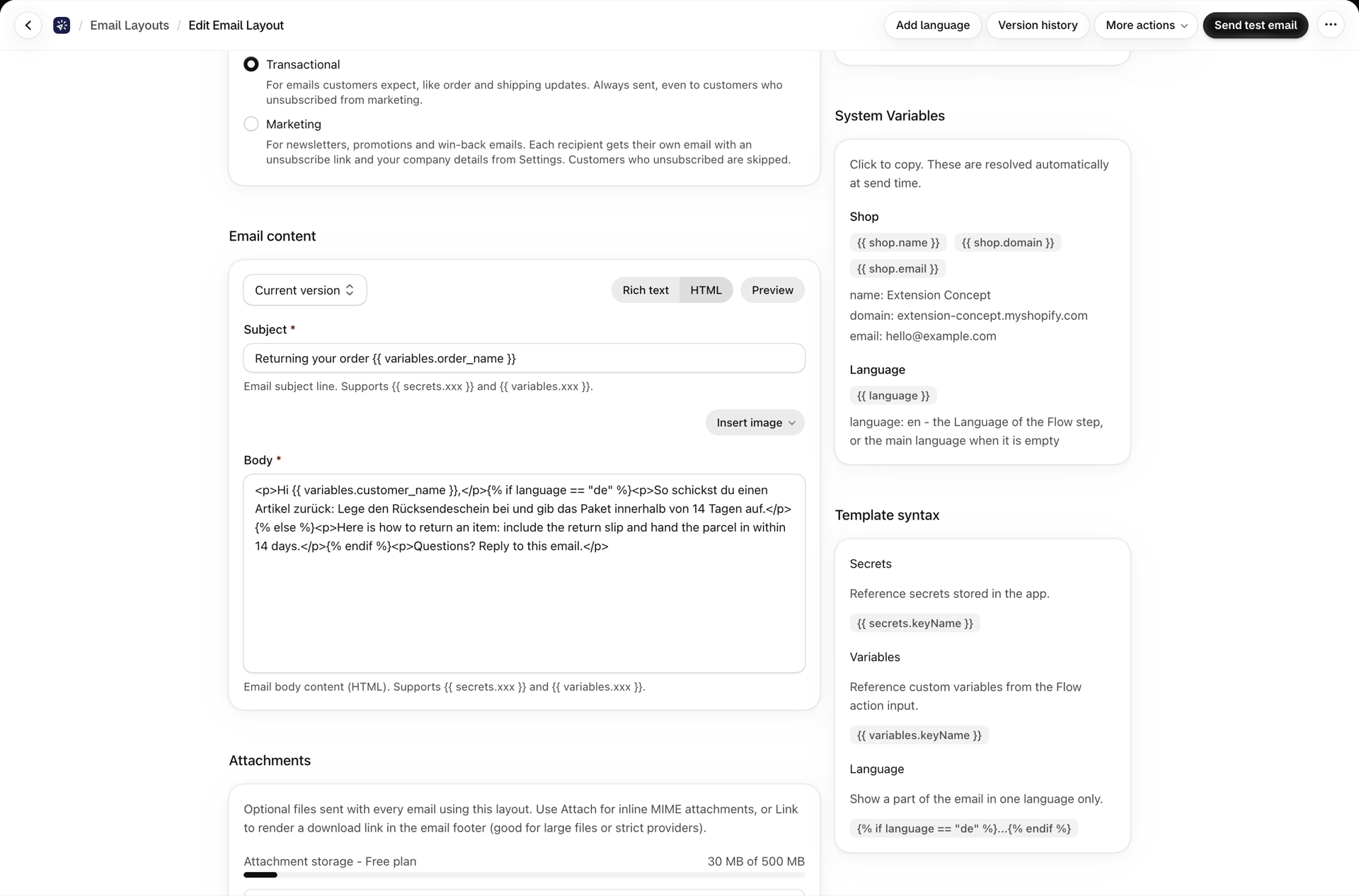
Sometimes a whole translation is more than you need: the email is the same for everybody, except for one sentence. For that, every layout knows {{ language }}.
{{ language }} is the Language your Flow step sent, in lower case (de, fr, de-at). When the step sends none, it is the layout's main language. It works in the subject, the preview text and the body, in the visual builder as well as in rich text / HTML layouts, and also inside a translation.
{% if language == "de" %}
  <p>Retouren aus Deutschland gehen an unser Lager in Hamburg.</p>
{% else %}
  <p>International returns are refunded within 10 working days.</p>
{% endif %}
In the visual builder, put this into an HTML / Code block. In a rich text / HTML layout, switch the body to HTML.
Shopify often sends a region with the language, such as de-AT or en-GB. {{ language }} keeps it (de-at), so compare only the first two letters when you mean "any German":
{% assign lang = language | slice: 0, 2 %}
{% if lang == "de" %}Hallo{% elsif lang == "fr" %}Bonjour{% else %}Hello{% endif %}
{{ language }} is what the step asked for, not the translation that was found. For a Japanese customer it says ja even though the main language was sent, so one layout without any translation can still react to it. The System Variables card in the editor lists it with its current value and copies it with a click. On a layout that has no main language yet, it stays empty until a Flow step sends a Language.
Test before you go live
- Send test email has a Language picker as soon as the layout has translations. Send yourself every language once.
- The test uses your Test Variables, not live data. A real workflow run is the final check; see Testing your email setup.
- To test the whole chain, run the workflow for an order whose customer has the language you translated into.
Check what was sent
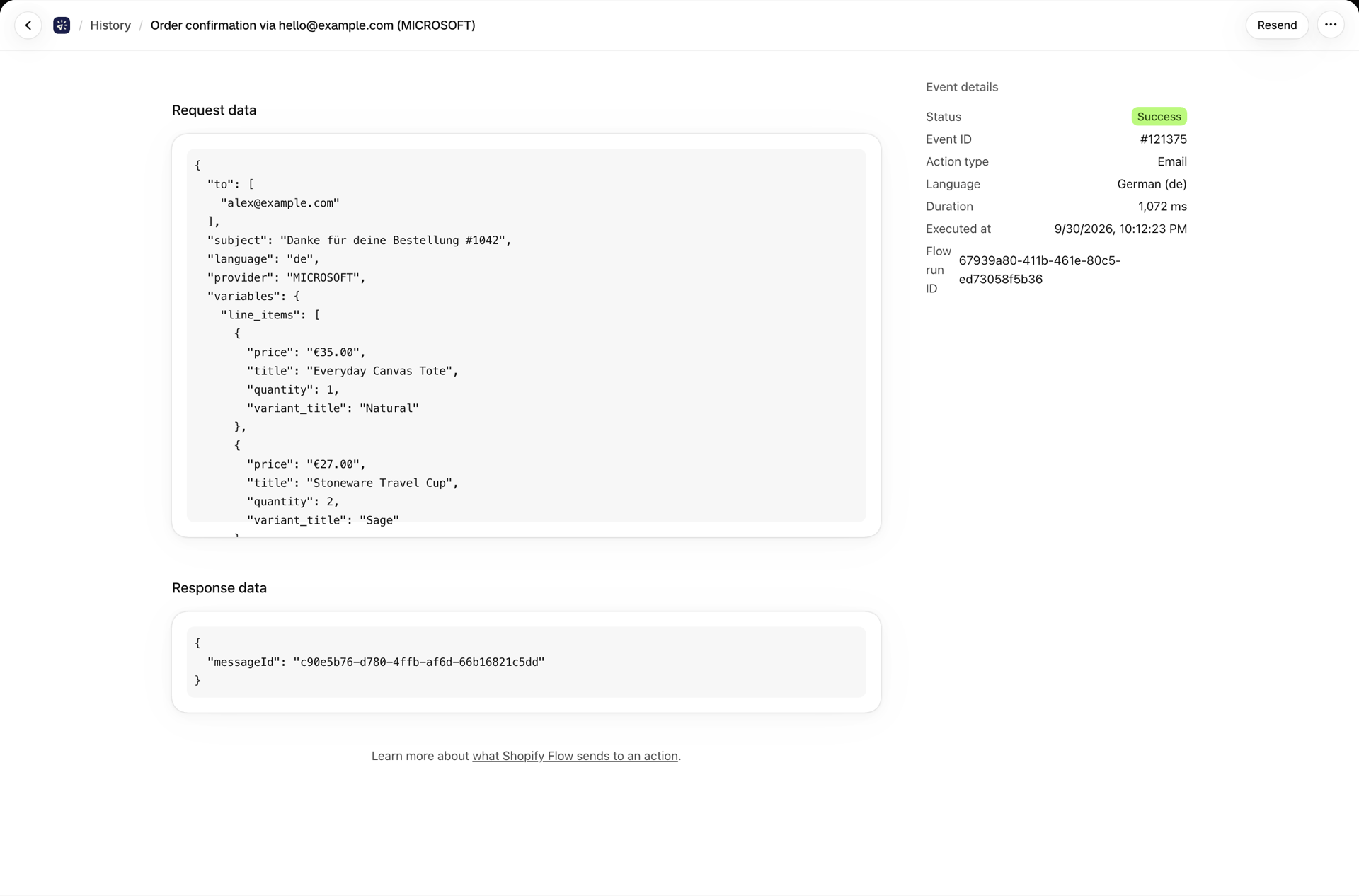
History records the language of every email. Open an event: Language under Event details shows the translation that was sent, or Main language of the layout. Resend sends the same language again.
Change the main language
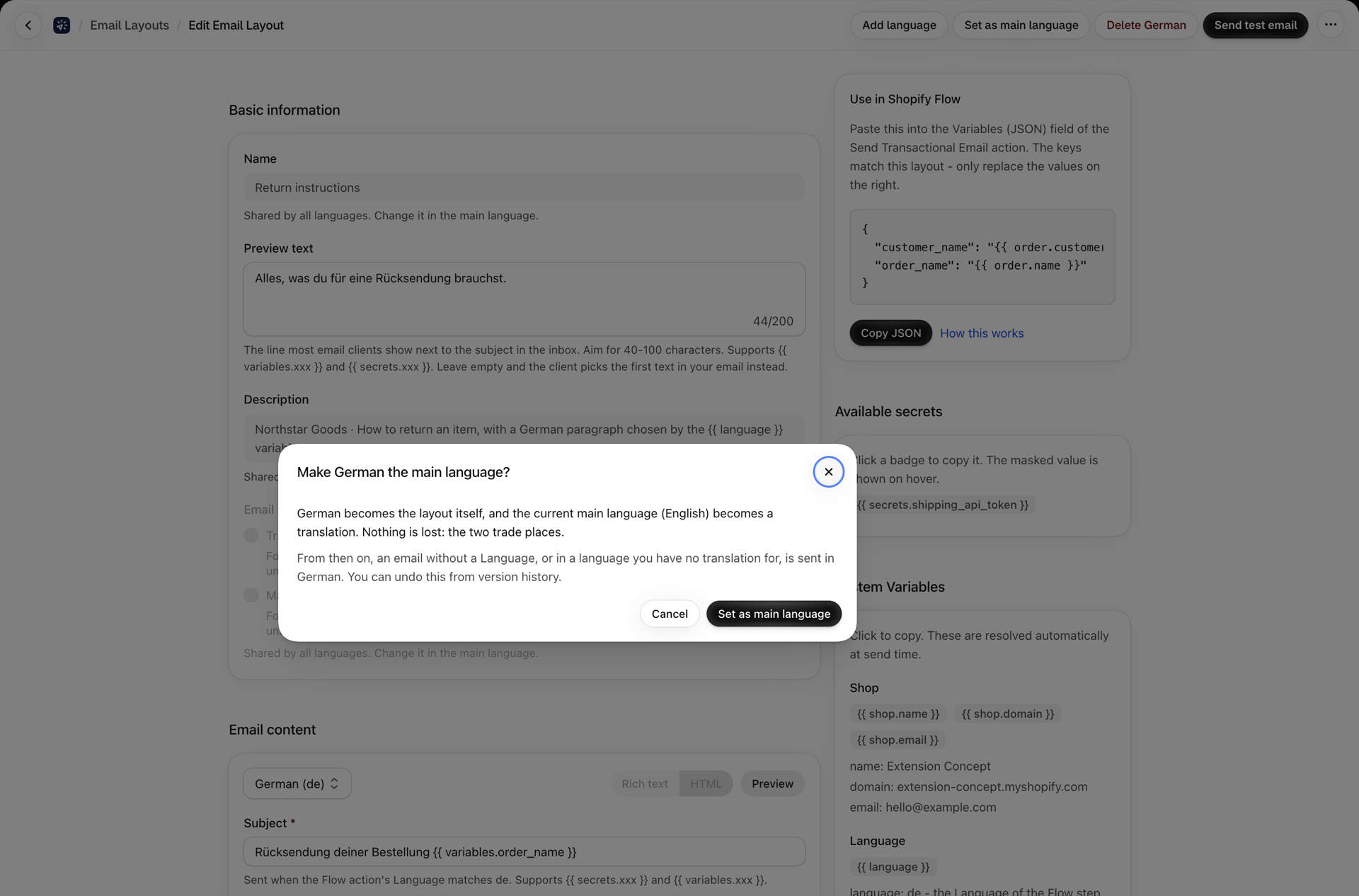
Your shop started in English and most customers are German now? Open the German translation and click Set as main language. German becomes the layout itself and English becomes a translation: the two trade places and nothing is lost. From then on, customers without a matching translation, and emails without a Language, get German. You can undo it from version history.
Remove a language
Open the translation and click Delete followed by its name, for example Delete German. Customers with that language get the main language from the next email on. The translation stays in the layout's version history and can be restored. See Layout version history.
If something is not as expected
A customer got the main language instead of their own. Open the email in History and look at Language. "Main language of the layout" means no translation matched: the Language field of the Flow step is empty, the variable had no value for that customer, or you have no translation for that language. Check the step first; the table in Step 3 has the right variable per trigger.
Add language is greyed out. The layout has no main language yet. Choose Main language of this layout at the top of the dialog first.
The language I need is not in the list. The list holds the most common languages. Any valid language code can be added through the API.
I changed the layout, but the German email still shows the old text. Translations are copies. Make the change in the German version too.
I changed the attachments, but one language still sends the old file. In a rich text / HTML layout that language is set to Different attachments for this language, so it keeps its own list. Open the translation and change the file there, or switch it to Same as the main language. In a visual layout, replace the file in that language's Attachment block.
I do not see the Language field in the Flow action. The step was added before this update, and Shopify Flow keeps the fields a step was created with. Delete the Send Transactional Email step and add it again: Language then sits between From name and Variables (JSON).
Through the API
Translations can be read and written with GET and PUT /api/v1/email-templates/:id/translations/:locale, a translation becomes the main language with POST /api/v1/email-templates/:id/translations/:locale/promote, and the MCP tools are list_template_translations, set_template_translation and promote_template_translation. For a rich text / HTML layout the translation's attachments field is its own list, or null for the main language's; marketingTexts holds a marketing layout's footer texts for that language. Any valid language code is accepted, up to 30 languages per layout. See REST API reference and Connect an AI assistant (MCP).
Related
- Build an email layout - layouts, the visual builder and rich text / HTML.
- Create, edit and translate layouts with AI - translate a layout with your own AI provider.
- Header and footer presets - a preset's texts in every language.
- Attachments and images - files, limits and Attach / Link mode.
- Marketing emails and unsubscribes - unsubscribe link and footer texts per language.
- Variables and Liquid - variables, conditions and filters.
- Layout version history - every save of every language, with restore.
- History and troubleshooting - what was sent, and why.