

History and troubleshooting
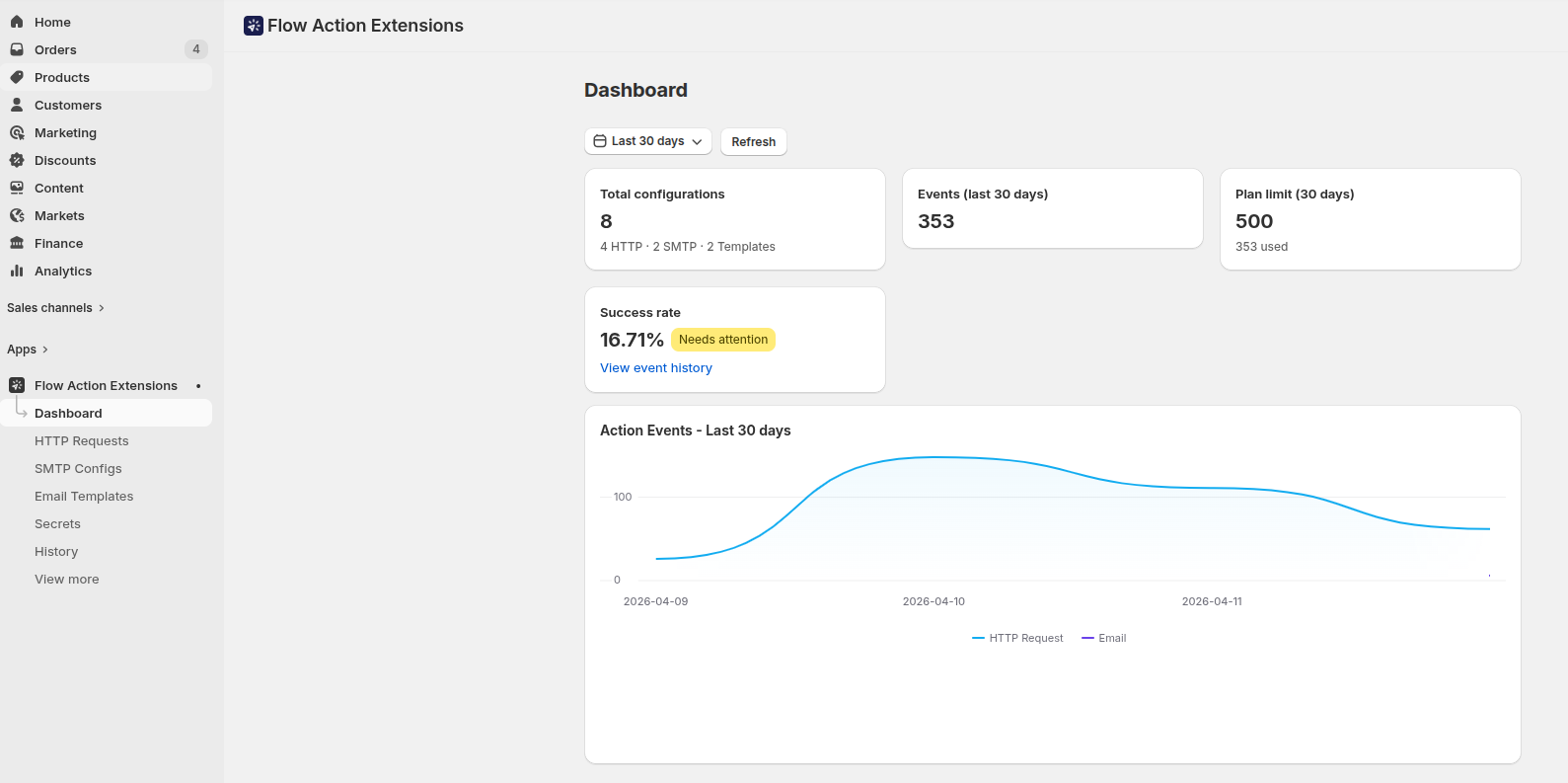
Every action this app runs is recorded. History is the first place to look when an email did not arrive, or arrived looking wrong.
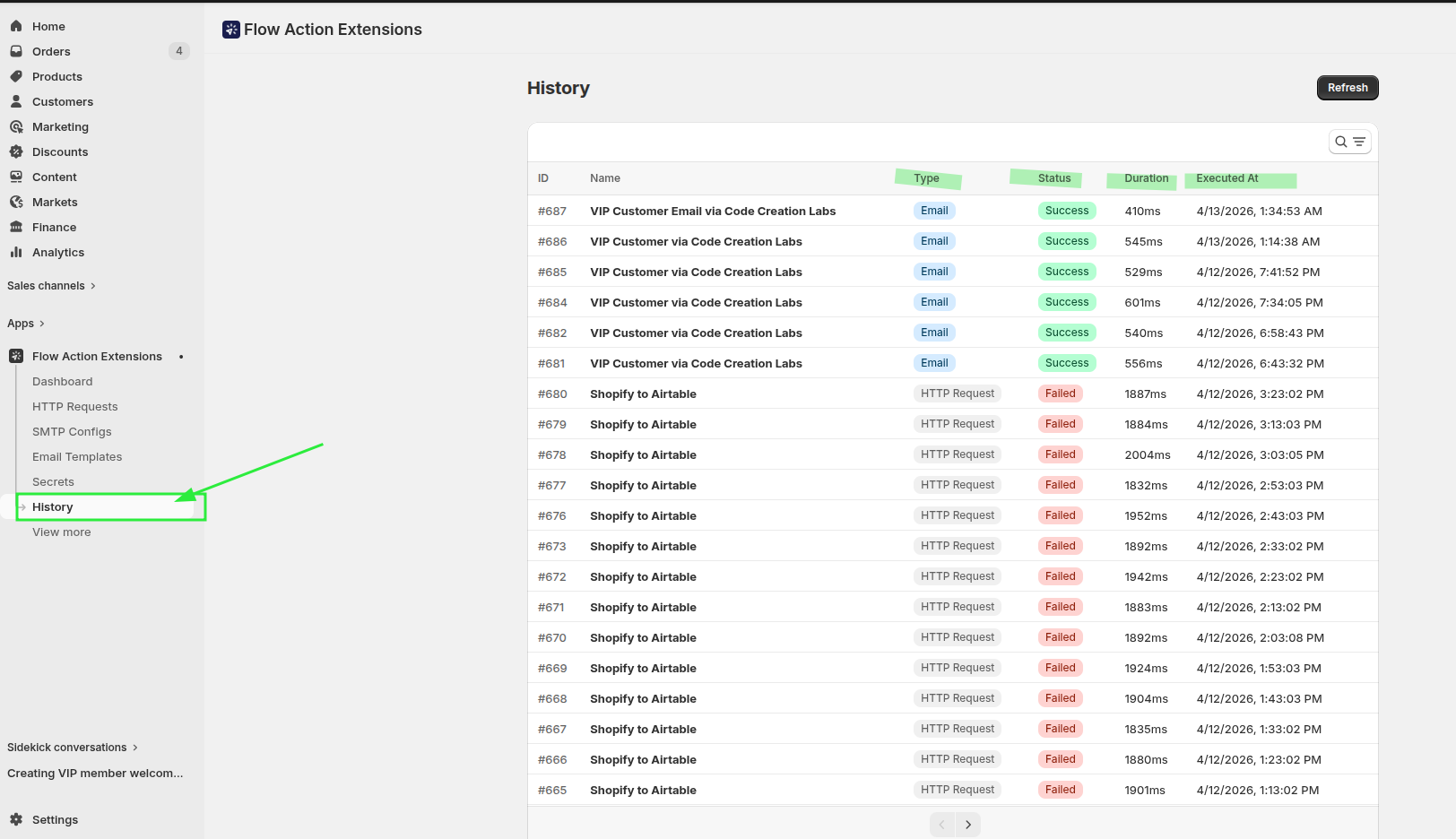
The list
Columns: ID, Name, Type, Status, Duration and Executed At.
Filter by:
- Action Type - HTTP Request or Email
- Status - Success, Failed, Pending or Skipped (unsubscribed)
Search matches the name of the layout or request. Arriving here from an HTTP request's Request history button pre-filters to that one request, with a Show all events button to clear it.
Export as CSV
Export CSV at the top of the History page downloads the list exactly as it is filtered right now: the search and every filter you set apply to the export too. The file is named history-<date>.csv and holds the newest 50,000 events at most. If your filters match more than that, the app tells you so after the download; narrow the filters (for example to one layout or one status) to reach older events.
Columns: Date (UTC), ID, Type, Status, Layout or request, Recipients, CC, BCC, Subject, Error and Duration (ms). Column names and status labels are in your admin language. Recipients, CC, BCC and Subject are filled for emails only. The export contains what the History list shows: Flow variables, request bodies and responses stay out of it.
The three things to look for
A red Failed badge means the send or request did not happen. Open it for the provider's error.
An amber Empty variables badge means the email was delivered, but one or more {{ variables.x }} placeholders rendered to nothing - so the recipient got a message with a gap in it. This is the failure that used to be invisible: the row is green, the provider accepted the message, and only the recipient sees the problem.
A grey Skipped badge means a marketing email was not sent because every To recipient had unsubscribed from your marketing emails. It is not a failure, it does not count against your plan, and it is left out of the success rate. See Marketing emails and unsubscribes.
The detail view
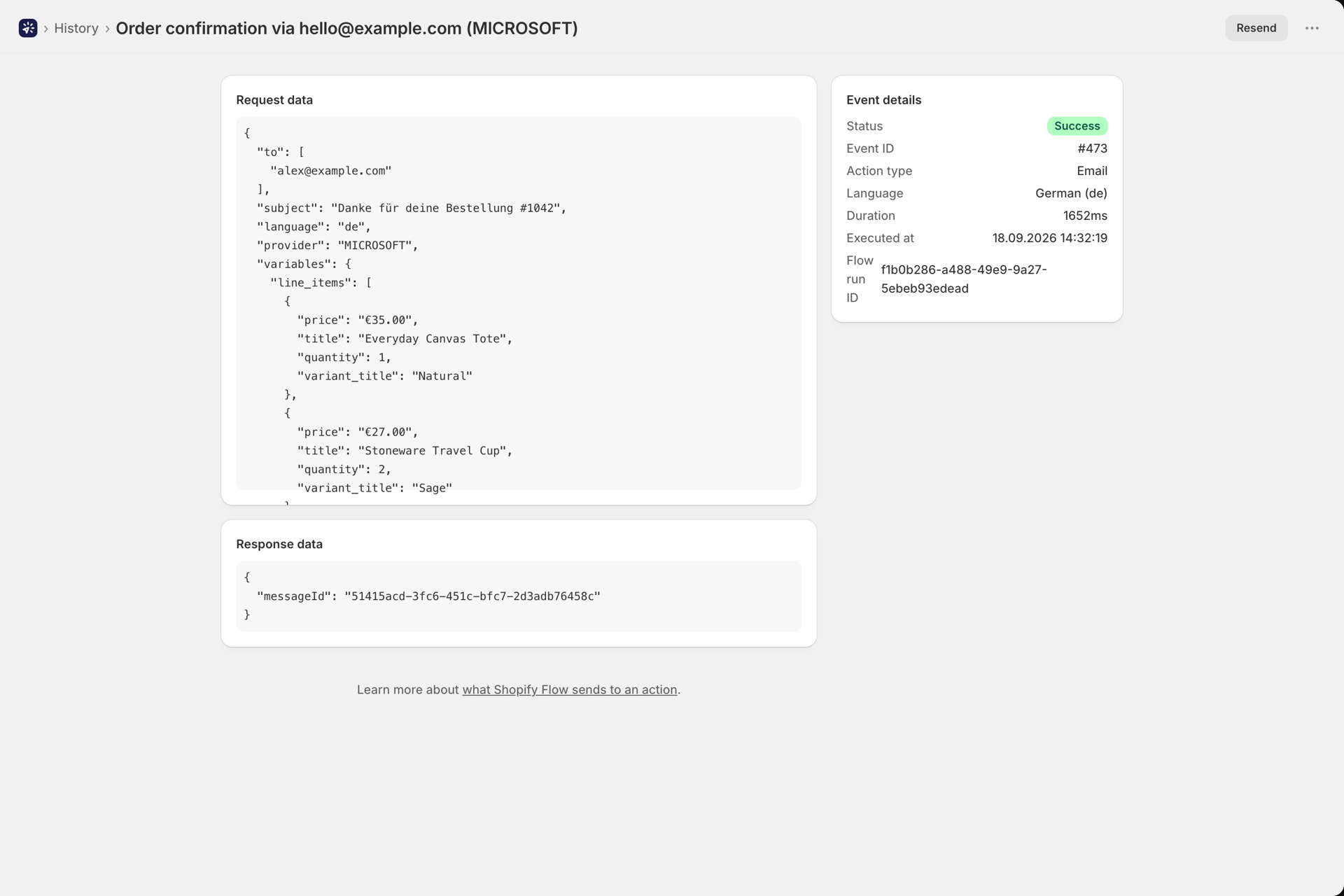
Opening an entry shows:
| Card | Contents |
|---|---|
| Empty variables warning | Which placeholders produced nothing, and whether Flow sent them empty or not at all |
| Not sent: the recipient unsubscribed | Shown on a Skipped event instead of an error, with a link to Unsubscribes |
| Event Details | Event ID, action type, status, duration, execution time, and the Flow run id |
| Error Message | The provider's or API's actual error, when the action failed |
| Request Data | What was sent - recipients, sender, resolved subject, variables, or the resolved HTTP request. For a marketing email, to is the recipient list after unsubscribed addresses were removed and suppressed says how many were removed |
| Response Data | What came back - the provider message id, or the HTTP status and body. For a marketing email, recipients lists every To recipient with sent, failed or skipped and its own message id or error |
The title tells you which sender was used, for example Order email via support@acme.com (MICROSOFT).
A marketing email goes out as one message per To recipient, but it is one event in History. The event is Success when every recipient got their message. It is Failed as soon as one message failed after another was sent; the error message then names who was left out, and recipients in Response Data shows who did get theirs.
Resending an action
The detail page has a Resend button. It re-renders the layout with the original variables and sends again to the original recipients through the same sender, or re-executes the HTTP request exactly as it was sent.
It runs immediately and counts as one action against your plan. Resend is not available for actions that went through the fallback default sender.
A Skipped event has no Resend button: nothing was sent, so there is nothing to send again. Run the workflow again once the customer has subscribed again. A resend of a marketing email checks the unsubscribe list again and leaves out anyone who unsubscribed since the original send; if that leaves nobody, the resend is refused.
Common problems
The email never arrived, and there is no History entry at all.
The action never ran. The problem is in Shopify Flow, not here: check the workflow is turned on, the trigger fired, and any condition actually matched. Tag conditions match exactly, so VIP and vip are different.
The entry has an Empty variables badge. Your layout asks for a variable the Flow action did not supply, or supplied empty. Open the entry to see which. Full walkthrough in Passing data from Shopify Flow.
The entry is Skipped. The layout is a marketing layout and every To recipient is on your Unsubscribes list, so the app did not send. That is the unsubscribe working as intended. If the email is one the customer must receive, such as an order or shipping update, it belongs in a transactional layout. See Marketing emails and unsubscribes.
A test email looked fine but the live one is blank. Test Variables in the layout editor only drive previews and test sends. A live run uses the Flow action's Variables (JSON) field, which is a completely separate thing. This is the most common source of confusion.
Status is Failed with an authentication error. For SMTP, the credentials or port are wrong - open the SMTP server and press Test Connection. For Microsoft 365 or Google, the connection may need re-authorising: check Email Senders → Connected accounts for a Reconnect required badge.
An email body shows [object Object].
You interpolated a whole object. In emails you must reach into it ({{ variables.customer.firstName }}) or loop over it. Only HTTP requests serialise objects to JSON automatically.
The message was rejected for size. Attachments over 20 MB in total are blocked, and Microsoft 365 rejects more than 4 MB of inline attachments. Switch the large files to Link mode. See Attachments and images.
An HTTP request fails with SSRF blocked.
The destination resolves to a private or internal network address, which is refused for safety. Use a publicly reachable endpoint.
Everything fails at once with a plan limit message. You have used your 30-day allowance. See Plans and usage.
Asking Sidekick
Shopify Sidekick can query this app directly, read-only. It is often quicker than filtering History by hand:
- "Did any emails fail this week?"
- "Why did my last email send fail?"
- "Which email senders are set up?"
- "Do I have an HTTP request for Airtable?"
Sidekick will never return secret values, SMTP passwords, OAuth tokens, HTTP header values, or raw payloads - it links you into the app for those.
Still stuck
Open a bug report with your store domain, the layout or request name, and the timestamp of the run. See Report a bug in the Help Center.