
Introduction to Workflow Transactional Email
Add Send Transactional Email, Send Marketing Email and HTTP Request actions to Shopify Flow: email from your own mailbox with a visual builder, product cards, discount codes, countdowns and attachments from order metafields, and call any API.
Shopify Flow starts workflows and decides what to do. What it cannot do on its own is reach outside Shopify: send a branded email from your own mailbox, or call an external API. Workflow Transactional Email adds exactly that. It gives Shopify Flow three actions, Send Transactional Email, Send Marketing Email and HTTP Request, so a workflow can email a customer from your domain, in your design, with your data, and push data to any service, without a line of code.
How it fits together
- Connect a sender. Your Microsoft 365 or Google mailbox with one click, or your own SMTP server. Every email leaves under your domain and your reputation.
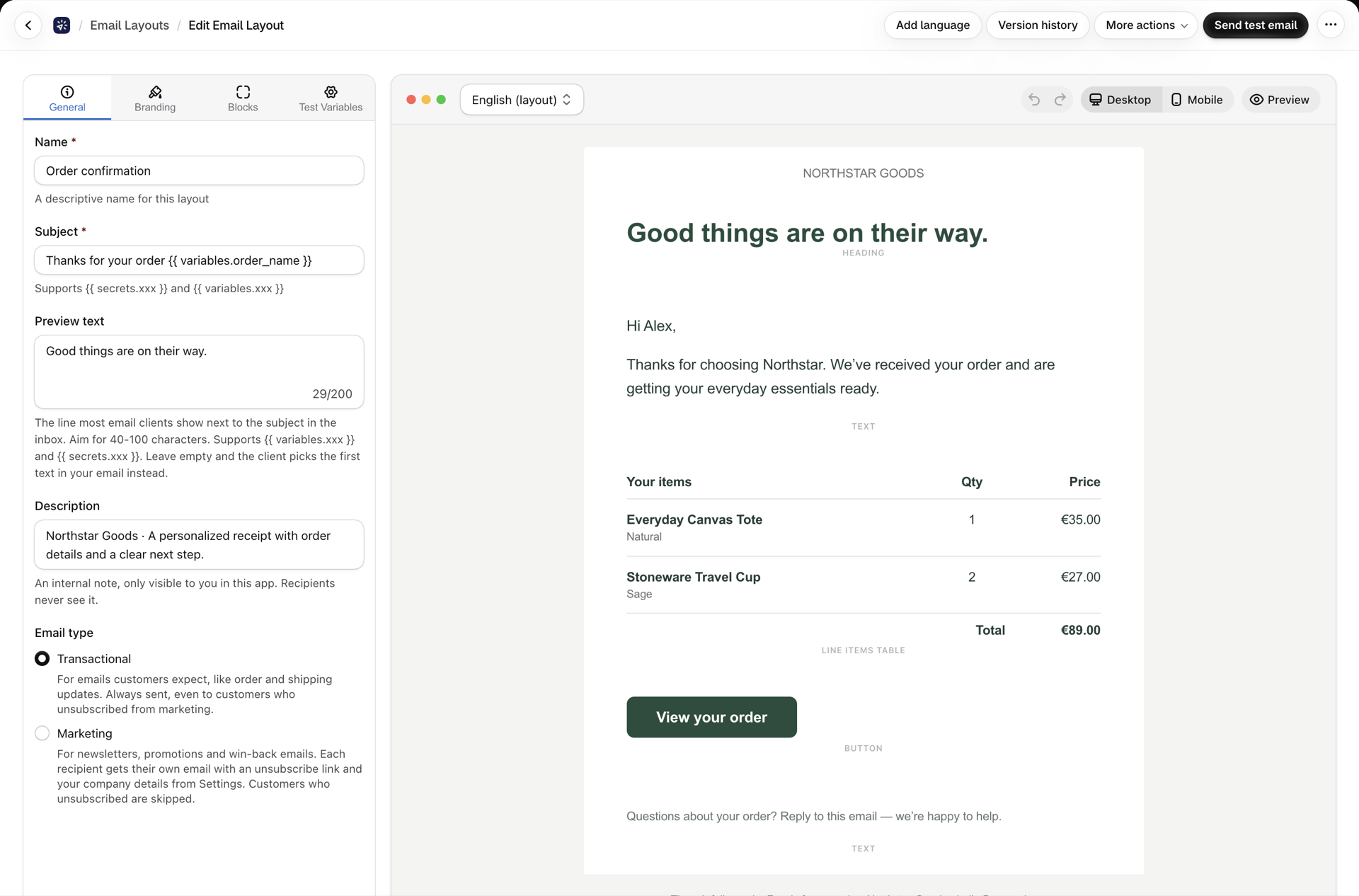
- Design the email. The visual builder assembles a layout from blocks; or paste your own HTML. Reusable headers and footers keep every message on brand.
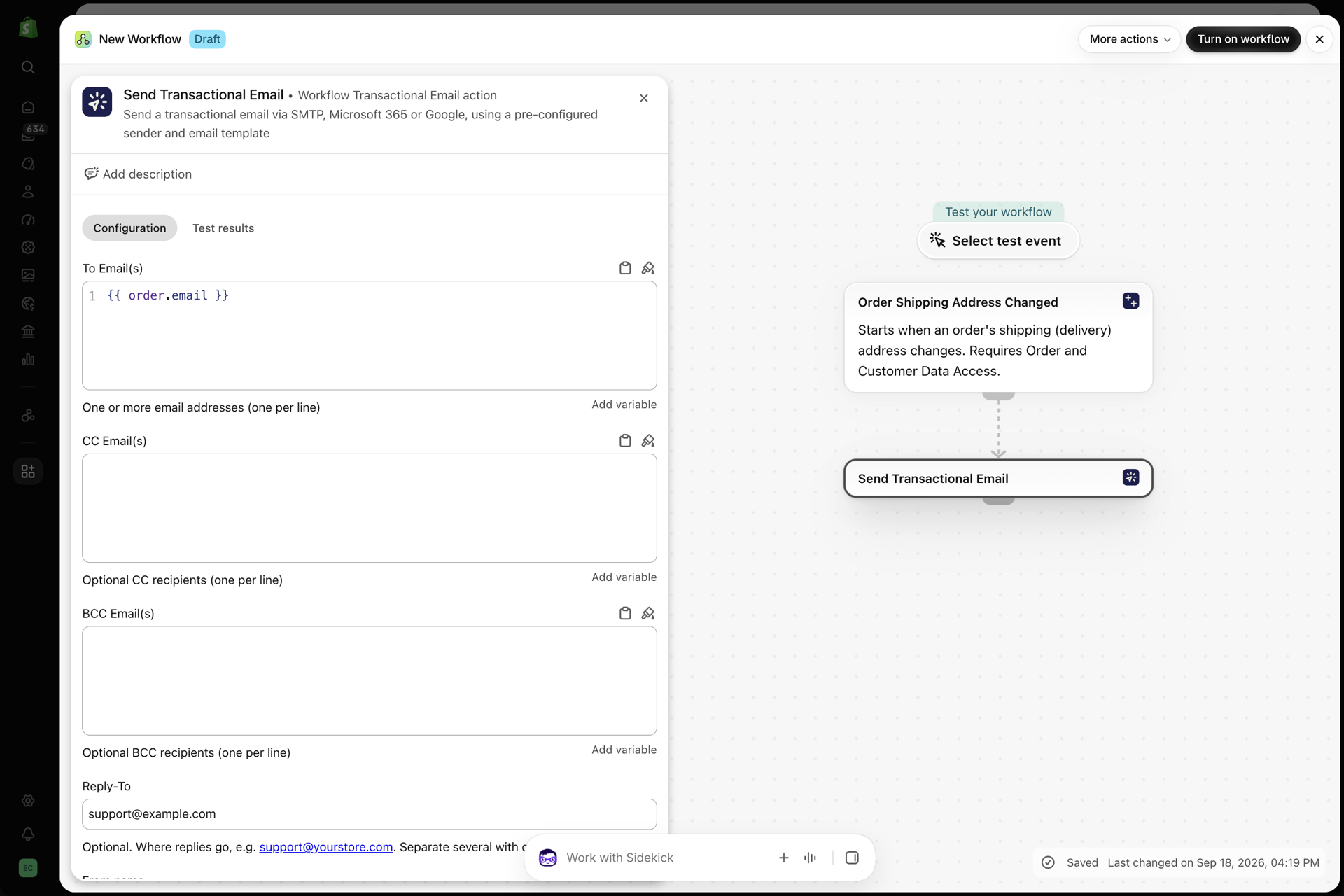
- Add the action in Shopify Flow. Pick the sender and the layout on the step, hand over the data with the Variables (JSON) field, and the workflow sends.
What you get
- Email from your own mailbox. Microsoft 365, Google Workspace and Gmail connect with OAuth; any SMTP server works too. Test sends and connection checks are built in, and the app tells you when a sender stops working. See Email senders overview.
- A real email designer. Text, headings, images, buttons, dividers, columns and a line items table, plus commerce blocks: product card and product grid, price, discount code, countdown, order tracking, star rating, testimonial, social links, video, signature, table and view in browser. Sections can be shown only when a condition is true. See Build an email layout and Content blocks: product, discount, countdown, tracking and more.
- Unique discount codes and live countdowns. A discount block can create a single-use code in your store for every email; the countdown block counts down in the inbox as an animated image.
- Emails in your customer's language. A layout carries translations; the Language field of the Flow step (usually
{{order.customerLocale}}) picks the right one. See Send emails in your customer's language. - Attachments. Upload a file, fetch one from a link at send time, or attach the file another app saved on the order or customer, such as an invoice PDF in a metafield. See Attachments and images and Attach a file from an order or customer metafield.
- Marketing emails with a way out. A marketing layout sends one email per recipient with its own unsubscribe link and your company details; customers who unsubscribe are skipped from then on. See Marketing emails and unsubscribes.
- HTTP requests on every Shopify plan. Shopify's own Send HTTP request action needs a higher plan. This one does not. See Make an HTTP request from Shopify Flow.
- Secrets and Liquid. API keys and passwords are stored once, encrypted, and referenced as
{{ secrets.keyName }}; subjects, bodies, URLs and payloads take{{ variables.xxx }}from Flow. See Secrets and Variables and Liquid. - Create and translate layouts with AI, keep every version, and mirror layouts to a GitHub repository. See Create, edit and translate layouts with AI, Layout version history and Keep unlimited layout history on GitHub.
- A full history. Every send and every request is recorded with status, timing and what was sent, and can be resent. See History and troubleshooting.
- Nothing read from your store unless you say so. The app installs with no access scopes. Four optional permissions exist, each for one feature (attaching a metafield file, creating discount codes), granted in place and revocable on the Permissions page. See Permissions: what the app can read from your store.
- An API and an MCP server for your own tooling and AI assistants. See Developer API and MCP.
The three Flow actions
Send Transactional Email
Sends a transactional layout: order confirmations, shipping updates, account notices. These are sent to everyone, including customers who unsubscribed from marketing.
| Field in Shopify Flow | What it does |
|---|---|
| To Email(s) | One or more recipients, one per line. Usually a Flow variable such as {{customer.defaultEmailAddress.emailAddress}} |
| CC Email(s), BCC Email(s) | Optional, one per line |
| Variables (JSON) | Data for the layout, for example {"customerName": "John", "orderId": "12345"}, used as {{ variables.customerName }} |
| Language | Optional. Picks the layout's translation, usually {{order.customerLocale}} |
| Reply-To, From name | Optional. Override the sender's defaults for this step |
| Order, Customer | Optional. The order or customer the step is about, needed only when the layout attaches a file from a metafield |
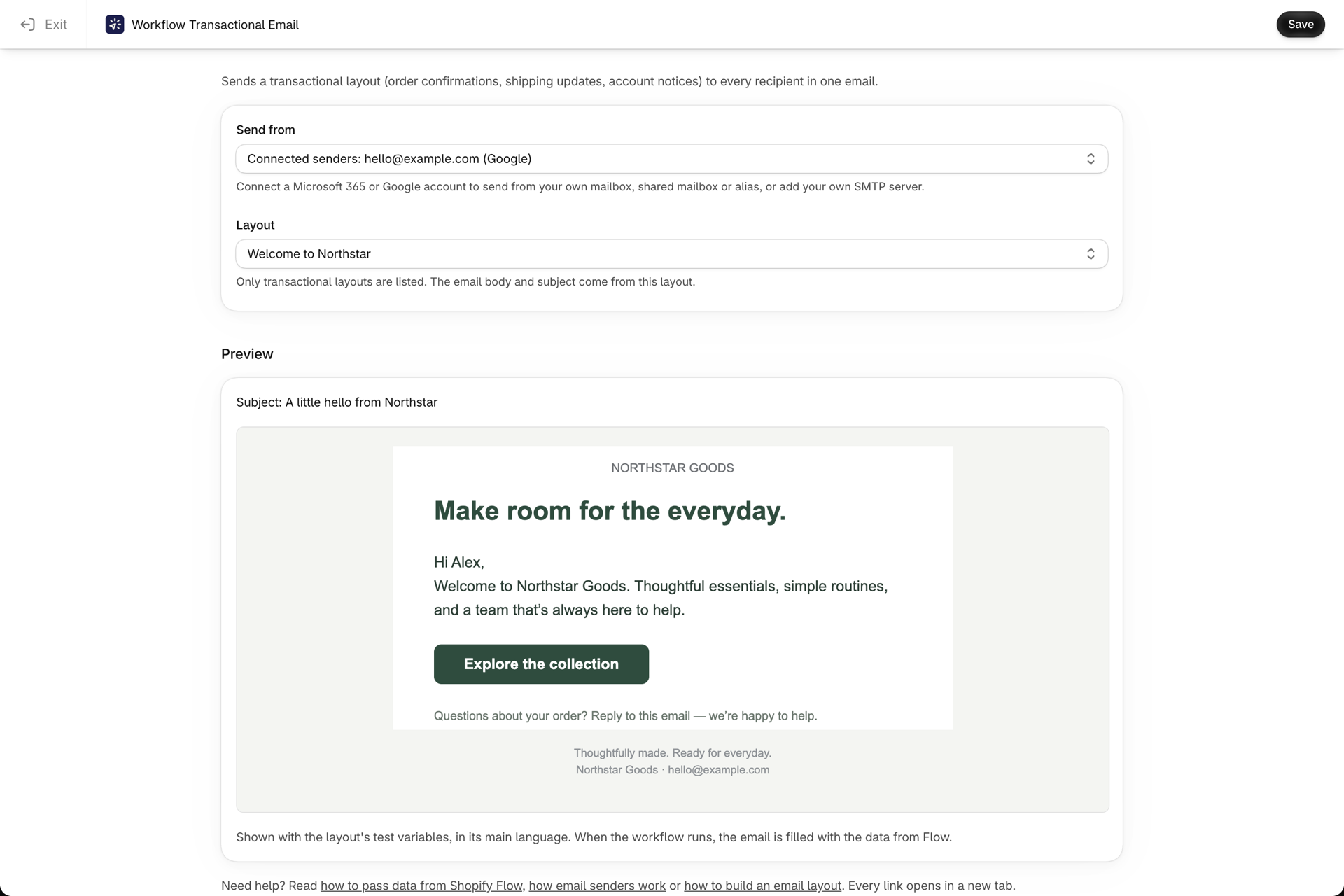
The sender and the layout are chosen on the action's own configuration page (Send from and Layout), not in these fields. That page previews the layout you pick, so similar layouts are easy to tell apart.
The action returns a result that later Flow steps can branch on:
| Return field | Values |
|---|---|
status |
SENT or FAILED, or SKIPPED when a layout switched to marketing had only unsubscribed recipients |
messageId |
The provider's message id, when available |
provider |
GOOGLE, MICROSOFT, SMTP or DEFAULT |
Send Marketing Email
Sends a marketing layout: a newsletter, a review request, a win-back offer. Same fields as above, but only marketing layouts are offered, and it sends differently:
- one email per To recipient (at most 20 per action), each with its own unsubscribe link,
- your unsubscribe sentence and company details in the footer,
- customers who unsubscribed are skipped.
| Return field | Values |
|---|---|
status |
SENT, FAILED or SKIPPED (every recipient had unsubscribed) |
messageId |
The provider's message id of the first email sent, when available |
provider |
GOOGLE, MICROSOFT, SMTP or DEFAULT |
Everything about marketing layouts, the footer and the unsubscribe list is in Marketing emails and unsubscribes.
HTTP Request
Runs an HTTP request you saved in the app: method, URL, headers and body, with secrets and variables in any of them.
| Field in Shopify Flow | What it does |
|---|---|
| Variables or Body Override (JSON) | Either variables used as {{ variables.xxx }} in the URL, headers and body, or a body override: {"body": {...}} replaces the configured body entirely |
| Return field | Values |
|---|---|
status |
The HTTP status code |
response |
The response body as stringified JSON |
Around the app
| Page | What it is for |
|---|---|
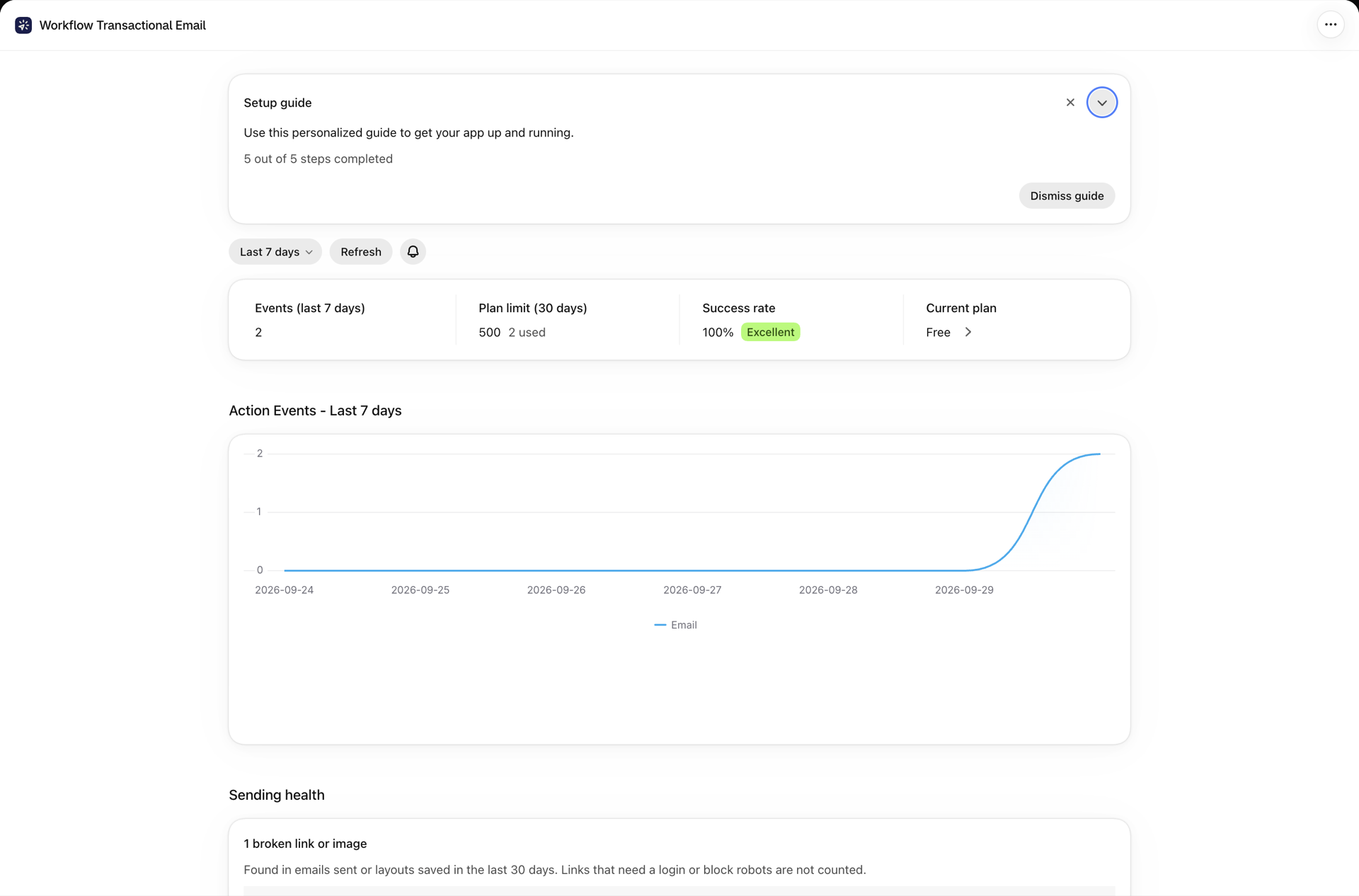
| Home | Setup guide, usage against your plan, success rate, sending health, an actions chart and recent activity |
| Email Senders | Connected Microsoft 365 and Google accounts, SMTP servers, and the test-send dialog |
| Email Layouts | The emails themselves, in a Transactional and a Marketing tab: subject, design, languages, attachments, test variables |
| Header & Footer | Reusable header and footer presets shared across layouts |
| HTTP Requests | Saved requests: method, URL, headers, body |
| Secrets | Encrypted values you reference as {{ secrets.keyName }} |
| History | Every execution with status, timing, request and response detail, and a resend |
| Unsubscribes | Customers who opted out of your marketing emails, with search, manual add, resubscribe and CSV export |
| Developer | API keys, the MCP connect command, AI and GitHub connections |
| Permissions | The optional store permissions, each with a grant and a revoke |
| Settings | Email defaults, marketing footer texts per language, brand colors, custom fonts and alerts |
| Help | Support, documentation links and your plan |
Plans and limits
| Plan | Price | Actions per rolling 30 days | Attachment storage |
|---|---|---|---|
| Free | $0 | 500 | 500 MB |
| Starter | $15 / month | 5,000 | 2 GB |
| Grow | $35 / month | 15,000 | 10 GB |
| Unlimited | $100 / month | Unlimited | 50 GB |
Annual billing is available on every paid plan and works out cheaper than monthly. One action is one email sent or one HTTP request executed; a marketing email to several recipients is still one action. Every plan includes all features; the plans differ only in volume and storage. See Plans and usage.
Start here
In this order, the first email is about fifteen minutes away:
- Install and set up - the app in your admin.
- Email senders overview - connect the mailbox or SMTP server the emails leave from.
- Build an email layout - design the email, or start from one of the Workflow templates.
- Passing data from Shopify Flow - add the action to a workflow and hand over the data.
- Testing your email setup - send a test and read the result in History.
Then, as you need them: Send emails in your customer's language, Marketing emails and unsubscribes, Attach a file from an order or customer metafield, Make an HTTP request from Shopify Flow, Notifications and alerts and the Frequently asked questions.