
Geheimnisse
API-Schlüssel und Passwörter verschlüsselt speichern und in Shopify Flow Vorlagen als {{ secrets.keyName }} einbinden.
Ein Geheimnis ist ein benannter, verschlüsselter Wert - ein API-Schlüssel, ein Bearer-Token, ein Passwort. Sie speichern ihn einmalig und verweisen mit seinem Namen darauf, sodass der Wert selbst niemals in einer Anfragevorlage, einem E-Mail-Layout oder Ihrem Verlauf erscheint.
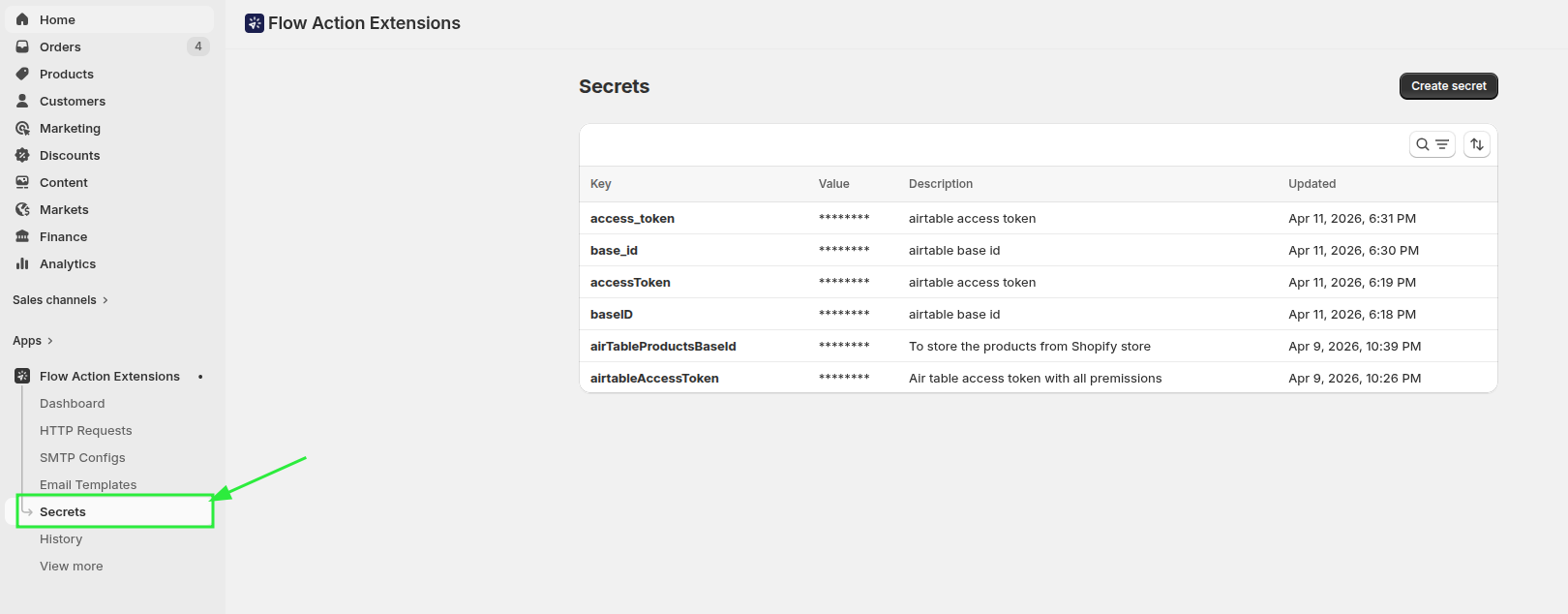
Ein Geheimnis schaffen
Öffnen Sie „Secrets“ und klicken Sie auf „Geheimnis erstellen“.
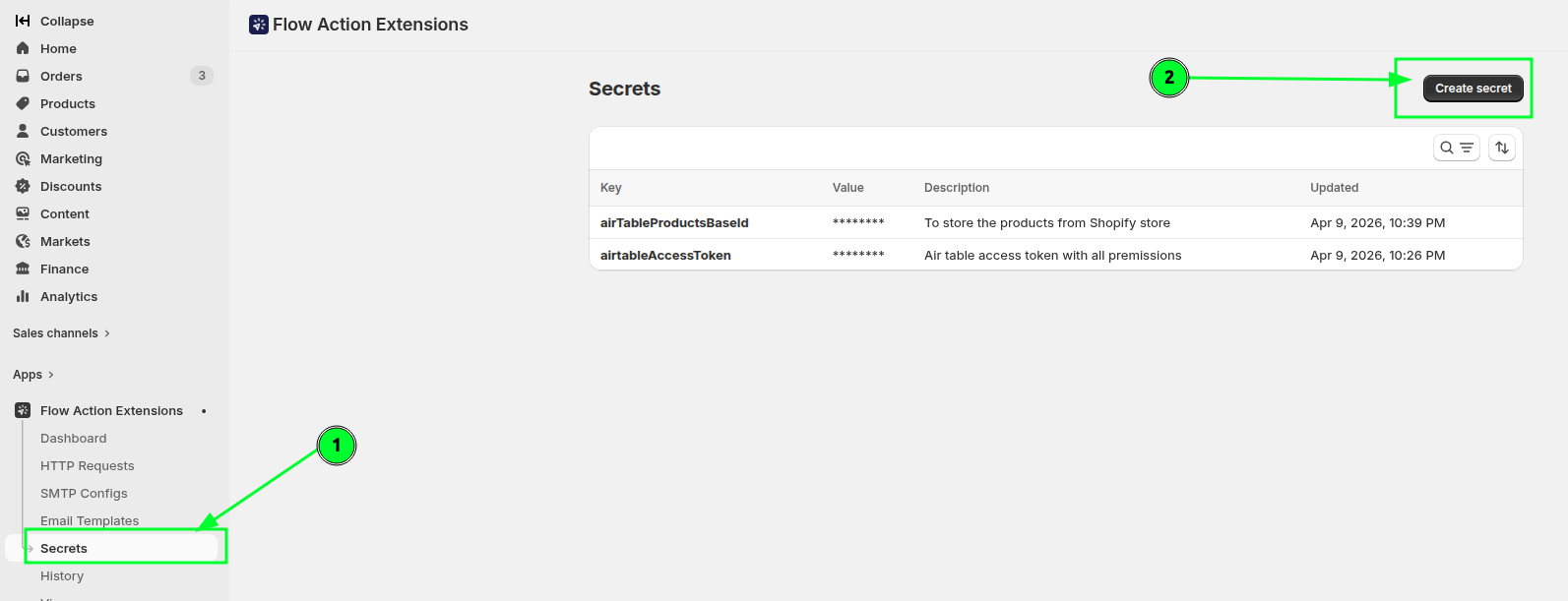
| Feld | Anmerkungen |
|---|---|
| Name | Nur Buchstaben, Zahlen und Unterstriche. Muss eindeutig sein. Kann später nicht mehr geändert werden. |
| Geheimer Wert | Der Wert an sich |
| Beschreibung | Optional, bis zu 1024 Zeichen. Es lohnt sich, dieses Feld auszufüllen - Ihr zukünftiges Ich wird sich nicht mehr daran erinnern, um welches Token es sich hier handelte. |
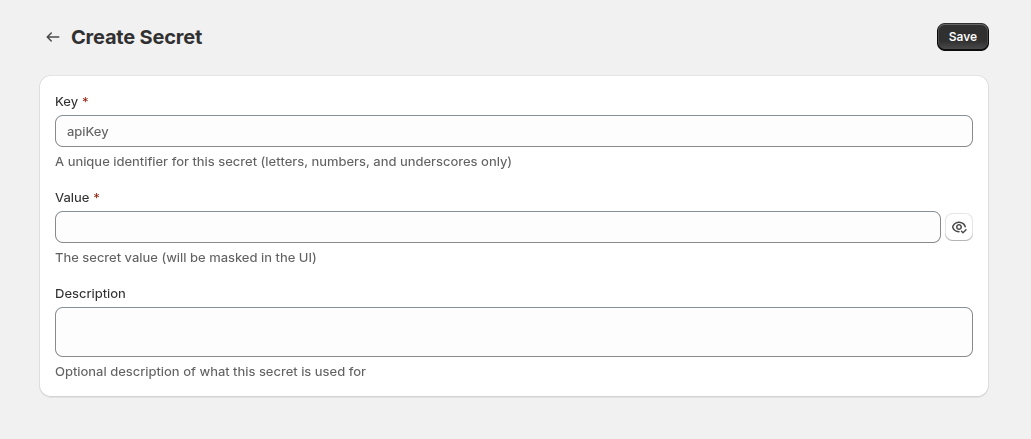
Der Name wird nach der Erstellung festgeschrieben, da eine Änderung dazu führen würde, dass alle Vorlagen, die darauf verweisen, nicht mehr funktionieren würden. Um den Namen zu ändern, erstellen Sie bitte ein neues Secret, aktualisieren Sie die Verweise und löschen Sie anschließend das alte Secret.
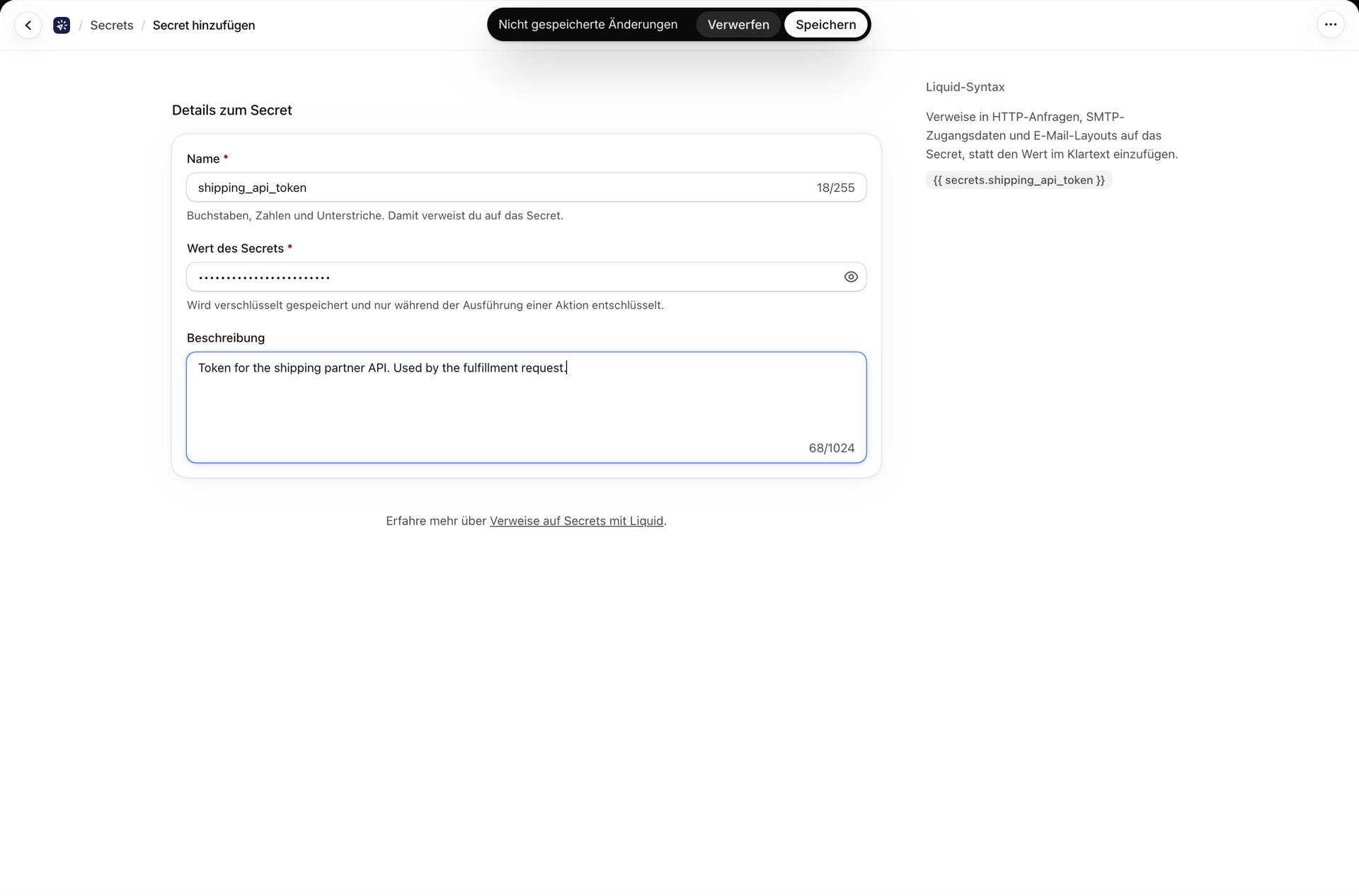
Die Verwendung eines Geheimnisses
Bitte verweisen Sie darauf unter {{ secrets.keyName }}:
Authorization: Bearer {{ secrets.airtableAccessToken }}Geheimnisse wirken in:
- URLs, Header und Hauptteile von HTTP-Anfragen
- Felder für SMTP-Benutzername und -Passwort
- Betreffzeilen und Textkörper von E-Mails, einschließlich Textfelder des Visual-Builders
In der Seitenleiste des Editors befindet sich eine Karte mit dem Titel „Verfügbare Geheimnisse“, auf der Ihre Schlüssel als anklickbare Symbole aufgelistet sind - klicken Sie auf eines davon, um die korrekte Syntax zu kopieren, anstatt sie einzugeben. Wenn Sie mit der Maus darüberfahren, wird eine maskierte Vorschau angezeigt, sodass Sie überprüfen können, ob Sie das richtige ausgewählt haben.
Wie Geheimnisse geschützt werden
- Die Werte werden im Ruhezustand mit Cloud KMS verschlüsselt und erst während der Ausführung einer Aktion entschlüsselt. Klartext wird niemals dauerhaft gespeichert.
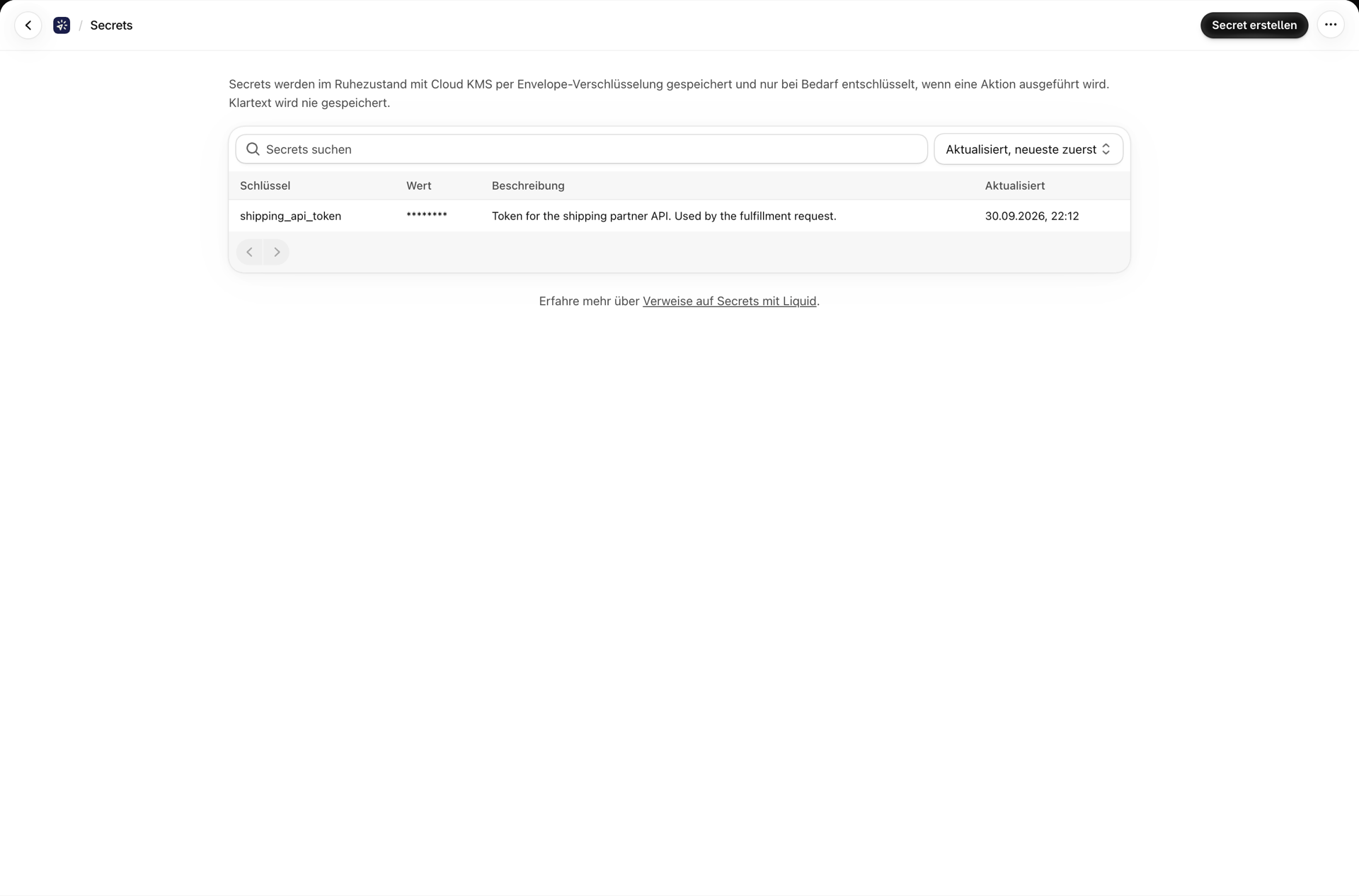
- In der „Secrets“-Liste wird
********angezeigt, niemals der Wert - die Seite erhält diesen gar nicht. - Vertrauliche Werte werden aus den Anfragedaten entfernt, bevor diese in den Verlauf geschrieben werden, sodass ein gespeichertes Token nicht über Ihre eigenen Protokolle nach außen gelangen kann.
- Sidekick kann Ihnen mitteilen, dass ein Geheimnis existiert, jedoch niemals dessen Wert.
Auf der Bearbeitungsseite wird der aktuelle Wert angezeigt, sodass Sie ein falsch eingegebenes Token korrigieren können.
Die Überprüfung eines Geheimnisses führt zu folgenden Ergebnissen
Da ein falscher Name nicht als Fehler, sondern als leere Zeichenkette ausgegeben wird, überprüfen Sie bitte Ihre Eingabe:
- Verwenden Sie bei einer HTTP-Anfrage die Funktion „Testen“ und lesen Sie die Felder „Aufgelöste URL“ und „Aufgelöster Textkörper“ in der Ergebniskarte ab.
- Um eine E-Mail zu versenden, wählen Sie bitte „Test-E-Mail senden“.
- Öffnen Sie nach einem Live-Durchlauf den Eintrag im Verlauf und überprüfen Sie die Anfragedaten.
Ein Geheimnis bearbeiten oder löschen
Beide Änderungen treten sofort in Kraft - überall dort, wo „secret“ verwendet wird, in Ihrem gesamten Shop.
Die App durchsucht Ihre HTTP-Anfragen, SMTP-Server und E-Mail-Vorlagen nach Verweisen und zeigt Ihnen die Ergebnisse an - sowohl auf der Seite als auch erneut in der Löschbestätigung, wobei jedes betroffene Element namentlich genannt wird.
Das wird Sie nicht daran hindern. Sie können ein noch verwendetes Geheimnis löschen; die App sorgt lediglich dafür, dass Sie zuvor darüber informiert werden.
Verwandte Themen
- Führen Sie eine HTTP-Anfrage unter Shopify Flow durch - Hinweise in einem Lösungsbeispiel.
- Variablen und Flüssigkeit - die vollständige Referenz zu den Vorlagen.
- Hintergrund und Fehlerbehebung - die Bestätigung dessen, was tatsächlich versendet wurde.